
KindleハイライトをEPUBにエクスポート
Kindleのハイライトとメモを、Kindleに送り返したり、どの電子書籍アプリでも読めるEPUB形式の電子書籍としてダウンロードできます。
How to export Kindle highlights to EPUB
- 1
Import your Kindle highlights
Use the Clippings.io browser extension to pull in highlights from books bought on Amazon, or upload the My Clippings.txt file from your Kindle to include personal documents. Duplicates are removed automatically.
- 2
Choose EPUB
Select the books or highlights you want, open Export and pick EPUB on the File Downloads tab. Choose one document for a single book of all your highlights, or one file per book. Open Show Advanced Export Options to pick a citation style, sort order and annotation types.
- 3
Download
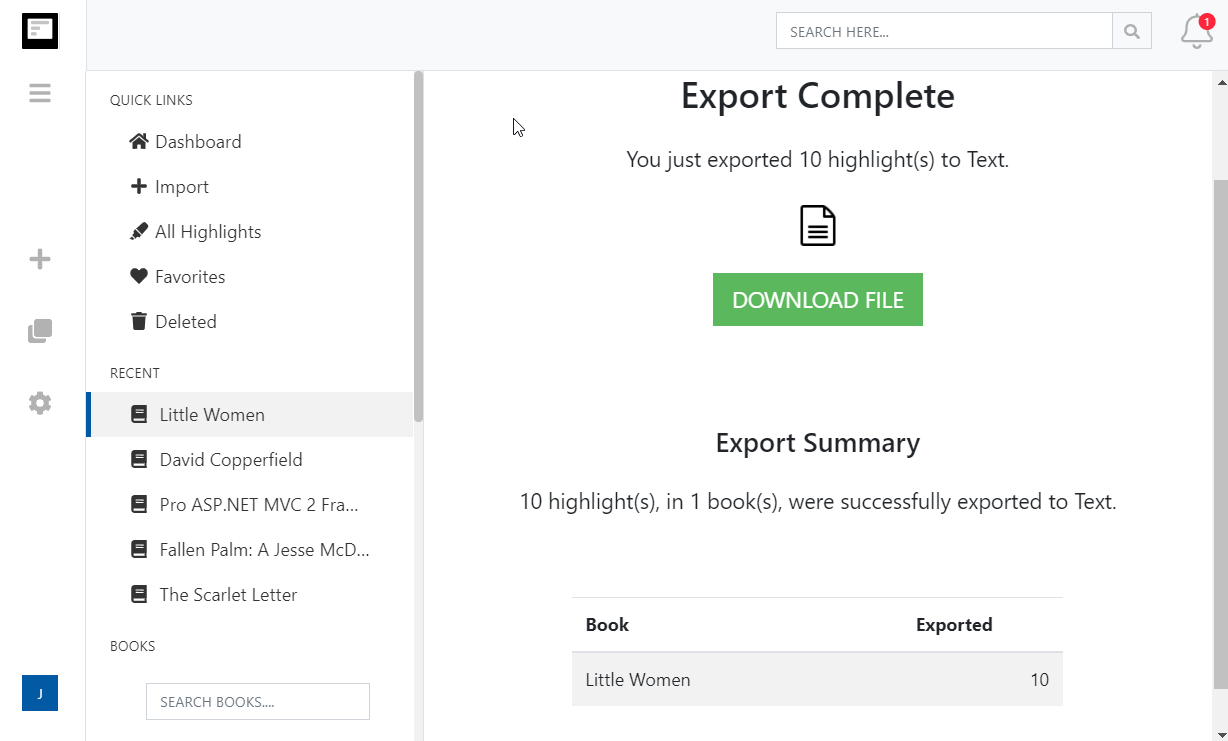
Click Start Export. The file is built in the background and a Download File button appears when it is ready. If you asked for one file per book, they arrive together in a zip.
What you get in EPUB
Your highlights as an ebook, so you can reread them where you read the books in the first place.
- An ebook of your highlights
- Titled Kindle Highlights, with a chapter for your library or for the book you exported, and every highlight, note and tag laid out as reflowable text.
- Send it back to your Kindle
- Amazon's Send to Kindle accepts EPUB, so your highlights can sit on your Kindle as a book of their own. It also opens in Apple Books, Google Play Books, Kobo and any EPUB reader.
- One ebook or one per book
- Download everything as a single EPUB, or one EPUB per book in a zip so each title is its own short book of highlights.
- Reflows on any screen
- Unlike a PDF, EPUB text resizes to your device and font settings, so it reads comfortably on a phone, a tablet or an e-reader.
- 高度なエクスポートフォーマットオプション
- 引用スタイル(シカゴ、MLS、APA)のオプションおよびタグやメモを含める機能など、Kindleハイライトをどのようにフォーマットするかを正確に定義します。
Kindle to EPUB questions
- Can I read the EPUB on my Kindle?
- Yes. Use Amazon's Send to Kindle app, website or email address to deliver the EPUB to your device, and it appears in your library like any other book. It also opens in Apple Books, Google Play Books, Kobo and desktop readers such as Calibre.
- What is in the ebook?
- A title of Kindle Highlights, or Kindle Highlights for the book when you export one file per book, followed by every highlight, note and tag you chose to include, in the order you chose. Each export is stamped with the date it was made.
- Can I get one ebook per book?
- Yes. Choose one document per book in the export options and the download is a zip with one EPUB per book, each named after its title.
- Can I include citations?
- Yes. Choose Simple, Chicago, APA or MLA in the export options and every highlight ends with its author, title and Kindle location or page.
- Can I send the EPUB to Dropbox or Google Drive?
- Not yet. EPUB is a download-only format; the cloud integrations offer Word, PDF, Excel, Text, Markdown, JSON and the OpenDocument formats. Download the EPUB and drop it into your cloud folder yourself.
- Can I export to EPUB on the free plan?
- Yes. On the free plan each exported highlight is cut to its first 100 characters, which is enough to see how the export looks. The professional plan removes the limit, and your first export after upgrading resends everything in full.
Clippings.io also exports Kindle highlights to Notion, Markdown, Dropbox, Google Drive, OneDrive, OneNote, Evernote, Word, Excel, PDF, Text, JSON, OpenDocument Text and OpenDocument Spreadsheet.