Exporte seus destaques do Kindle para o Dropbox
Envie seus destaques e notas do Kindle para uma pasta Clippings.io no Dropbox como Word, PDF, Markdown ou qualquer outro formato, e mantenha tudo atualizado automaticamente.
How to export Kindle highlights to Dropbox
- 1
Import your Kindle highlights
Use the Clippings.io browser extension to pull in highlights from books bought on Amazon, or upload the My Clippings.txt file from your Kindle to include personal documents. Duplicates are removed automatically.
- 2
Connect Dropbox
Open Settings, Integrations in Clippings.io, choose Dropbox and click Allow when Dropbox asks. Dropbox gives Clippings.io its own app folder and nothing else, so the rest of your Dropbox stays private.
- 3
Export
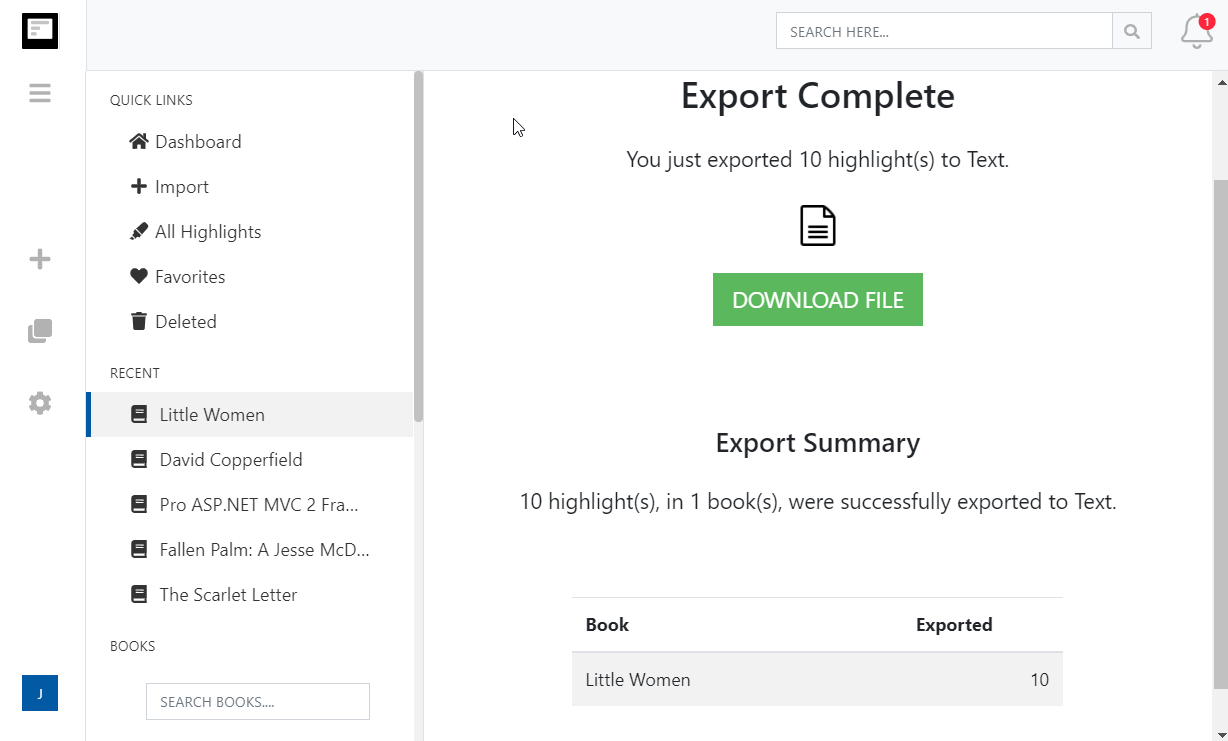
Select the books or highlights you want, open the Export menu and pick Dropbox. Choose Word, PDF, Markdown or any other file format, one file for everything or one per book, and click Start Export.
What you get in Dropbox
Your Kindle highlights as ordinary files, in a folder that syncs to every device you own.
- A Clippings.io folder under Apps
- Files land in Dropbox, Apps, Clippings.io. Clippings.io can only see that folder, and you can open, share or back it up like any other Dropbox folder.
- Pick the file format: Word, PDF, Excel, Text, Markdown, JSON, OpenDocument Text or OpenDocument Spreadsheet
- Word is the default. Choose one file for your whole library, or one file per book so each title is easy to find and share.
- Only what changed is written
- Clippings.io remembers which highlights it has sent. Export again and only books with new highlights are rewritten, so a big library after the first run takes seconds.
- Automatic exports
- Turn on Auto Export and every import, whether from the browser extension or a My Clippings.txt upload, is pushed to Dropbox without you doing anything.
- Opções avançadas de formato para exportação
- Defina exatamente como gostaria de formatar seus destaques do Kindle, incluindo opções de estilos de citação (Chicago, MLA, APA) e a habilidade de incluir etiquetas e anotações.
Kindle to Dropbox questions
- Where do my Kindle highlights end up in Dropbox?
- In the folder Apps, Clippings.io at the top of your Dropbox. Clippings.io writes files straight into that folder with the book title as the file name when you choose one file per book, or a single file named KindleHighlights when you choose one document.
- Which file formats can I send to Dropbox?
- Word, PDF, Excel, Text, Markdown, JSON, OpenDocument Text or OpenDocument Spreadsheet. Word 2007 (.docx) is the default. Change it in the export options or in Settings, Integrations, and Clippings.io keeps track of what it has exported in each format separately.
- What happens if I export the same book twice?
- The file for that book is replaced with the latest highlights, so you never get duplicate files or duplicate highlights. Books with nothing new are left alone.
- What if I edit the exported files in Dropbox?
- Those edits are lost the next time the book is exported, because Clippings.io replaces the whole file. Edit highlights and notes in Clippings.io instead and they come across on every export, or copy the files out of the Clippings.io folder before editing them.
- How much of my Dropbox can Clippings.io access?
- Only its own app folder, Apps, Clippings.io. That is the permission Dropbox grants when you connect, and you can revoke it at any time from Settings, Integrations in Clippings.io or from your Dropbox connected apps.
- Can I export to Dropbox on the free plan?
- Yes. On the free plan each exported highlight is cut to its first 100 characters, which is enough to see how the export looks. The professional plan removes the limit, and your first export after upgrading resends everything in full.
Clippings.io also exports Kindle highlights to Notion, Markdown, Google Drive, OneDrive, OneNote, Evernote, Word, Excel, PDF, Text, EPUB, JSON, OpenDocument Text and OpenDocument Spreadsheet.
Pronto para entrar nessa?Comece hoje com uma conta gratuita.
Destaque uma vez, lembre para sempre. Comece a tirar máximo proveito dos livros que você lê no seu kindle.
Registre-se de graça