Cores de destaque do Kindle: Colorsoft, app e exportação
Kindle highlights come in yellow, orange, blue and pink, plus green on a Colorsoft since early 2026, but only some Kindles can show them and fewer places keep them. Here is which devices have colours, how to change them, how to filter by them, and what happens to them when you export.
Which Kindles have highlight colours
| Device or app | Highlight colours |
|---|---|
| Kindle Colorsoft (all editions) | Yellow, orange, blue, pink; green added by the February 2026 update |
| Kindle Scribe Colorsoft | Five highlighter colours, plus ten pen colours |
| Kindle, Paperwhite, Oasis, Kindle Scribe | None. Coloured highlights made elsewhere show in grey |
| Kindle app (iPhone, iPad, Android, Windows, Mac) | Yellow, orange, blue, pink |
| Kindle for Web (read.amazon.com) | Choose a colour when you highlight |
Amazon's product pages and user guide still list four colours for the Colorsoft. The green highlight and coloured bookmarks arrived with software 5.19.2 in February 2026, as reported by e-reader news sites.
How to highlight in colour on a Kindle Colorsoft
- 1Press and hold the first word of the passage and drag to the last word.
- 2In the menu that appears, tap the colour you want. The passage is highlighted in that colour.
- 3Your next highlight uses the same colour until you pick another. A new Colorsoft starts with yellow.
The full steps for selecting text, highlighting across pages and adding notes are in how to highlight on Kindle.
How to change a highlight's colour
Kindle Colorsoft
- 1Tap the highlighted passage.
- 2Tap the colour circle next to Delete.
- 3Pick the new colour.
Kindle Scribe Colorsoft
- 1Tap the highlight or underline to open the action bar.
- 2Choose a new colour.
- 3For handwritten strokes, circle them with the Lasso tool first, then change the colour.
Kindle app and Kindle for Web
- 1Tap or click the highlight.
- 2In the phone and tablet app, press and hold the colour dot and pick a colour. In Kindle for Web, pick the new colour from the pop-up.
Coloured bookmarks
On the Kindle Scribe Colorsoft, and on the Kindle Colorsoft since the February 2026 update, bookmarks can have colours too. Tap the top-right corner to add a bookmark, then tap the bookmark to open its colour options. On the Scribe Colorsoft the first bookmark is blue and later ones default to the last colour you used.
How to filter Kindle highlights by colour
- 1Open the book and tap the top of the screen.
- 2Tap the Annotation Notebook icon.
- 3Use the filter to show only one highlight colour. The list starts at the annotations nearest your current page; tap one to jump to it.
Colour filtering is on the Kindle Colorsoft and the Kindle Scribe Colorsoft, which can also filter by type and sort by date created or modified. On the Kindle, Paperwhite and older Scribes the same filter, added in software 5.19.2, shows highlights, notes or bookmarks, but not colours.
Where Kindle highlight colours show up
| Place | Shows colours? |
|---|---|
| Kindle Colorsoft and Scribe Colorsoft | Yes |
| Kindle, Paperwhite, Oasis, black-and-white Scribe | In grey |
| Kindle app and Kindle for Web | Yes, synced from your devices |
| read.amazon.com/notebook | Yes, for books from the Kindle store |
| My Clippings.txt | No. The file records the text, location and date only |
| Books copied over USB | Only on the Kindle where you made them; they do not sync |
Where to open each of these is covered in where to find and view your Kindle highlights.
Do Kindle highlight colours export?
Mostly not. Exports are about the words, and colour is the first thing lost on the way out.
- My Clippings.txt never had the colours, so anything built from it, including Clippings.io's text-file import, cannot know them. Clippings.io marks those highlights yellow.
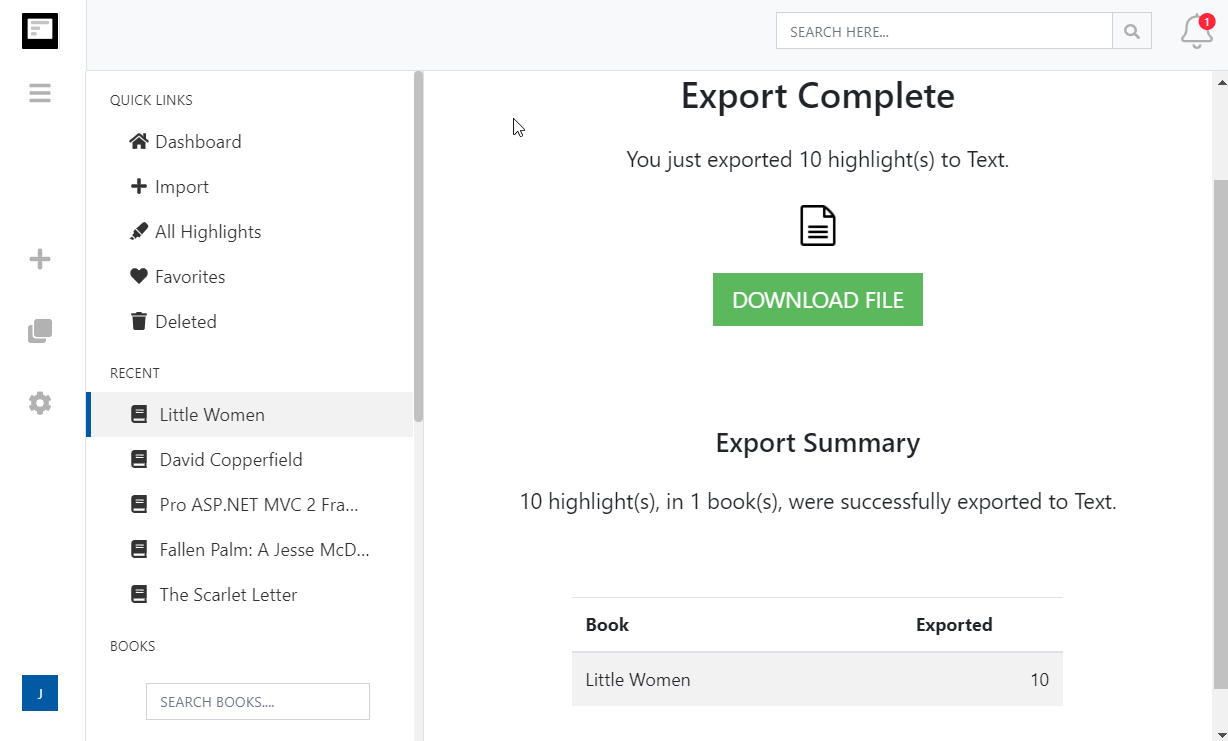
- Clippings.io reads yellow, orange, pink and blue from Amazon's notebook page when the browser extension imports, and shows them in your library if you turn on the highlight colour display option. Green, new in 2026, is not recognised yet and arrives without a colour. Exports carry the text, notes, book and location, not the colour.
To keep what a colour meant, give each colour a tag in Clippings.io (say, quote for blue and to-do for orange), then export by tag to Notion, Obsidian, Evernote or a Word document. The meaning survives even where the colour cannot.
Registre-se de graçaA Kindle highlight colour system that works
Colours only help if each one means one thing, every time. A common four-colour scheme:
| Colour | Use it for |
|---|---|
| Yellow | Key ideas and the passages you would quote in a summary |
| Blue | Quotes worth keeping word for word |
| Pink | Words, names and facts to look up |
| Orange | Things to do, try or apply |
Keep a fifth colour, green if your Colorsoft has it, for passages you disagree with or want to argue with later. Whatever scheme you choose, write it down: a year from now you will not remember what pink meant.
Kindle highlight colour questions
- Which Kindles have highlight colours?
- Every Kindle Colorsoft edition, and the Kindle Scribe Colorsoft. The Kindle, Kindle Paperwhite, Kindle Oasis and the black-and-white Kindle Scribes have no colour picker and show coloured highlights in grey. The Kindle app on phones, tablets and computers, and Kindle for Web, also let you choose a colour.
- What colours can you highlight in on a Kindle Colorsoft?
- Amazon lists four: yellow, orange, blue and pink. A software update in February 2026 (5.19.2) added green and coloured bookmarks, according to e-reader news sites, although Amazon's product pages still say four. The Kindle Scribe Colorsoft has five highlighter colours and ten pen colours.
- How do I change the colour of a highlight on my Kindle?
- On a Kindle Colorsoft, tap the highlight, then tap the colour circle next to Delete and pick a new colour. On a Kindle Scribe Colorsoft, tap the highlight to open the action bar and change the colour there. In the Kindle app, tap the highlight and press and hold the colour dot. New highlights use the last colour you chose; out of the box that is yellow.
- Why are my Kindle highlights grey?
- Because the Kindle you are reading on has a black-and-white screen. Highlights made in colour on a Colorsoft, or in the Kindle app, keep their colour in your account; a Kindle, Paperwhite, Oasis or black-and-white Scribe just draws every highlight in grey. Open the same book in the Kindle app or at read.amazon.com/notebook to see the colours.
- Can I change the default highlight colour?
- There is no separate setting. A Kindle Colorsoft uses whichever colour you picked last for the next highlight, so to change the default, highlight something in the colour you want and it sticks until you choose another. A new Colorsoft starts with yellow.
- Why can't I choose a highlight colour on my Kindle Paperwhite?
- Colour highlighting needs a colour screen, so only the Kindle Colorsoft models and the Kindle Scribe Colorsoft have a colour picker. On a Paperwhite, highlight in the Kindle app on your phone or computer if you want colours; they sync to the Paperwhite, which shows them in grey.
- Can I filter Kindle highlights by colour?
- On a Kindle Colorsoft, yes: open the Annotation Notebook and filter by highlight colour. The Kindle Scribe Colorsoft filters by type and colour and can sort by date. On other Kindles the notebook filters by type only (highlights, notes, bookmarks), from software 5.19.2.
- Do Kindle highlight colours sync?
- Yes. Highlights keep their colour when they sync through Amazon to your other Kindle apps and devices, and read.amazon.com/notebook shows them in colour. A black-and-white Kindle displays them in grey. Books copied to the Kindle over USB never sync, so their colours stay on that device.
- Are highlight colours saved in My Clippings.txt?
- No. My Clippings.txt records the book, the location, the date and the text of each highlight, but not its colour. The only place colours can be read outside a Kindle or the app is Amazon's notebook page.
- Do highlight colours export?
- Not as colours. Most export tools, Clippings.io included, export the text of the highlight. Clippings.io imports yellow, orange, pink and blue from Amazon and shows them in your library, but exports do not carry them. If your colours mean something, add a tag for each colour in Clippings.io and export by tag.
Steps checked against Amazon's user guides and help pages on , for Kindle software 5.19.6.
Sources
- Amazon: Kindle Colorsoft user guide
- Amazon: Kindle Scribe Colorsoft user guide
- Amazon: Kindle Colorsoft product page
- Amazon: colored bookmarks on Kindle Scribe Colorsoft
- Amazon: Kindle for Web help
- The eBook Reader: Kindle Colorsoft now has colored bookmarks and green highlights (February 2026)
- The eBook Reader: Kindle software update 5.19.2
Pronto para entrar nessa?Comece hoje com uma conta gratuita.
Destaque uma vez, lembre para sempre. Comece a tirar máximo proveito dos livros que você lê no seu kindle.
Registre-se de graça