Organiza los destacados de tu Kindle
Every highlight, note and bookmark you make on a Kindle lands in one file, My Clippings.txt, in the order you made them. Here is what that file is, what it leaves out, and how to turn it into a library you can search, tag, edit and export.
What My Clippings.txt looks like
One entry per clipping, appended forever: the book, a line with the type, page or location and date, the text, and a separator. The same title repeats at every entry, there are no covers, and a book past its publisher's clipping limit gets a placeholder instead of the text.
It lives at documents/My Clippings.txt when the Kindle is plugged into a computer. It is the only place highlights from personal documents and sideloaded books are recorded; Amazon's notebook page has only the books you bought there. Our guide to where Kindle highlights are stored compares all four places.
The Pragmatic Programmer (David Thomas; Andrew Hunt)
- Your Highlight on page 27 | Location 412-414 | Added on Tuesday, 3 March 2026 21:14:08

Care about your craft. Why spend your life developing software unless you care about doing it well?
==========
From a log file to a library
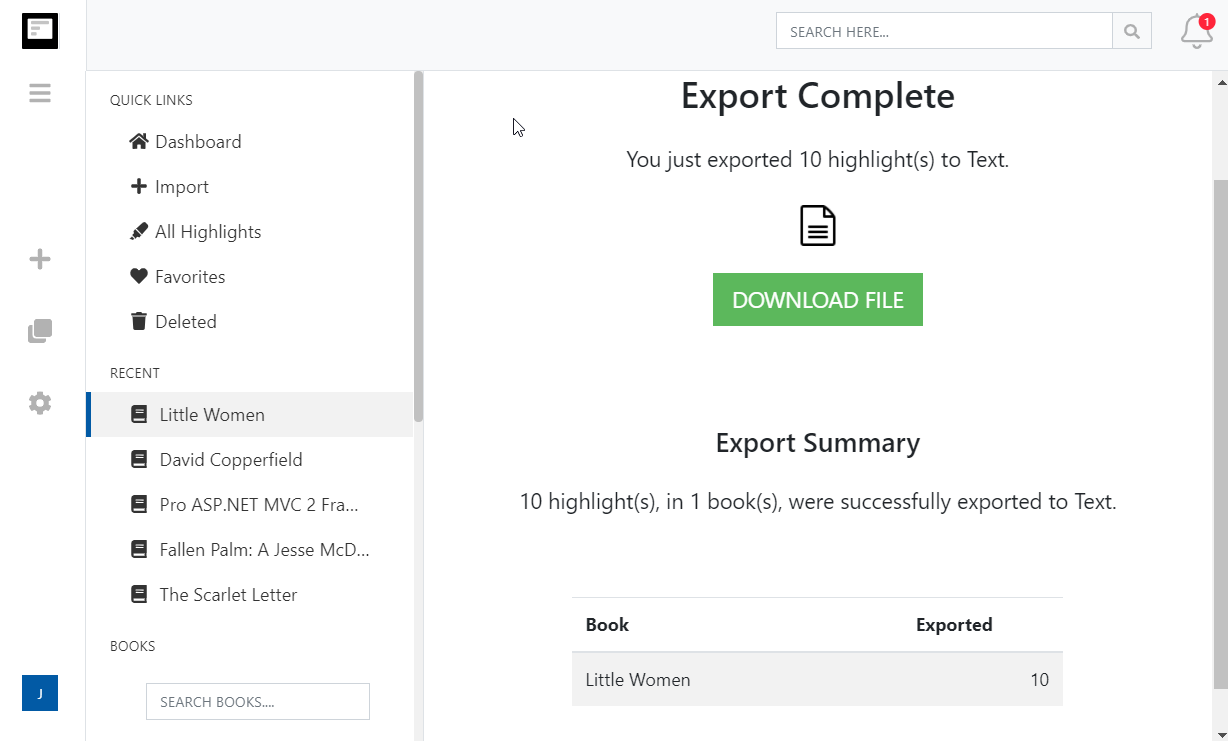
Upload the file, or import from Amazon with the browser extension, and Clippings.io splits it back into books, removes the duplicates and gives you the tools the Kindle never had.
Organiza los destacados de tu Kindle
Organiza y edita todos tus destacados de Kindle con el potente Editor de destacados de Kindle
- Edita los destacados de tu Kindle
- Edita tus destacados de Kindle directamente en el navegador y añade notas adicionales.
- Etiqueta y organiza tus destacados
- Etiqueta y organiza los destacados de tu Kindle Kindle en colecciones. Clippings.io se convierte en tu Libro de visitas para gestionar todo lo que has leído.
- Busca los destacados de tu Kindle
- Busca todos tus destacados de Kindle en todos los libros que hayas destacado al instante.
- Favourites
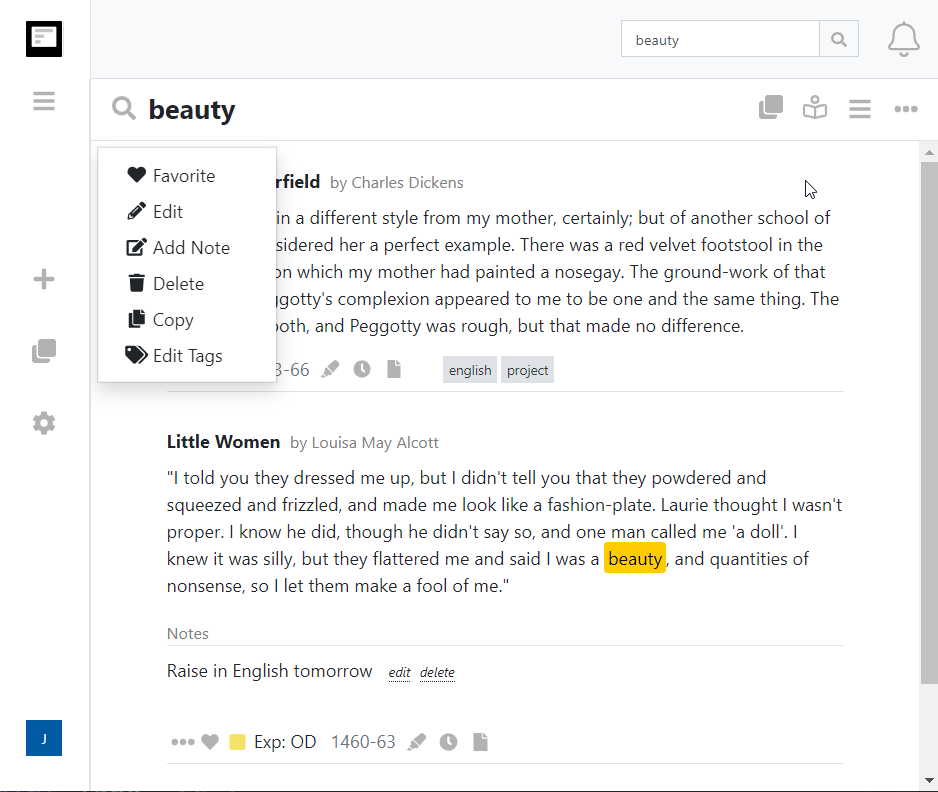
- Star the highlights worth keeping close, then browse or export just those.
- Book collections
- Tags organise highlights; collections organise books. Group a reading list, a course or a research topic and export the whole collection at once.
- Notes attached to their highlights
- A note you typed on the Kindle is stored as a separate clipping. Clippings.io links it back to the highlight it belongs to, so the pair travels together into every export.
- Fix titles and authors once
- Amazon and personal documents deliver mangled titles and author names. Correct them once and every export uses the fix.
- Trash, restore, and stay deleted
- Deleted highlights and books wait in Deleted Items until you empty it, and Clippings.io remembers what you removed so the next import does not bring it back.
- Covers, authors and Kindle colours
- Every book gets its cover and metadata, and the yellow, pink, blue and orange highlight colours from your Kindle are kept.
Kindle clippings questions
- What is My Clippings.txt?
- A plain text file every Kindle e-reader keeps in its documents folder. Each time you highlight, add a note or set a bookmark, the Kindle appends an entry: the book's title and author, a line saying whether it is a highlight, note or bookmark with the page or location and the date, a blank line, the text itself, and a line of ten equals signs. Nothing is ever removed from it, even when you delete the highlight in the book.
- Where is My Clippings.txt on my Kindle?
- Connect the Kindle to a computer with its USB cable, open the Kindle drive, then the documents folder. The file is documents/My Clippings.txt. It also opens on the Kindle itself from the home screen as a document, but there it is read-only and hard to navigate.
- Why is it so hard to read?
- It is one long list in the order you made the clippings, not by book, with the same book's title repeated at every entry, no covers or metadata, and duplicates whenever you re-highlight or extend a highlight. Books past their publisher's clipping limit show 'You have reached the clipping limit for this item' instead of the text. It was designed as a log, not as notes.
- Does it include personal documents and books I did not buy on Amazon?
- Yes. That is its one advantage over Amazon's notebook page at read.amazon.com/notebook, which only shows books bought from that Amazon store. Highlights in sideloaded books, PDFs and documents you emailed to the Kindle exist only in My Clippings.txt.
- How do I organise my Kindle clippings?
- Upload My Clippings.txt to Clippings.io, or import from Amazon with the browser extension, and the entries are split back into books and deduplicated. Then edit highlights and notes, tag them, star favourites, group books into collections, fix a mangled title or author once, and search everything instantly. Notes you typed on the Kindle are attached to the highlight they belong to. Export the result to Evernote, Notion, Word, PDF, Markdown and more.
- How do I delete clippings from my Kindle?
- Deleting a highlight in a book does not remove its entry from My Clippings.txt. Over USB you can edit the file or delete it, and the Kindle starts a fresh one; copy it out first, or import it, because everything from personal documents is only there. Clippings.io never changes the file or anything on Amazon; deleting in Clippings.io is separate, reversible from Deleted Items, and remembered so the same clipping is not imported again.
Want them gone rather than organised? How to delete Kindle highlights covers the device, the app, Amazon and My Clippings.txt.
¿Listo para sumergirte?Empieza hoy mismo con una cuenta gratuita.
Resalta una vez, recuerda para siempre. Empieza a aprovechar al máximo los libros que lees en tu Kindle.
Regístrate gratis