
Exportez vos surlignements Kindle en JSON
Téléchargez vos surlignements et notes Kindle en JSON structuré, un objet par surlignement avec livre, auteur, emplacement, dates, tags et notes.
How to export Kindle highlights to JSON
- 1
Import your Kindle highlights
Use the Clippings.io browser extension to pull in highlights from books bought on Amazon, or upload the My Clippings.txt file from your Kindle to include personal documents. Duplicates are removed automatically.
- 2
Choose JSON
Select the books or highlights you want, open Export and pick JSON on the File Downloads tab. Open Show Advanced Export Options to choose which annotation types to include, whether to add the Notes and Tags arrays, and how the records are sorted.
- 3
Download
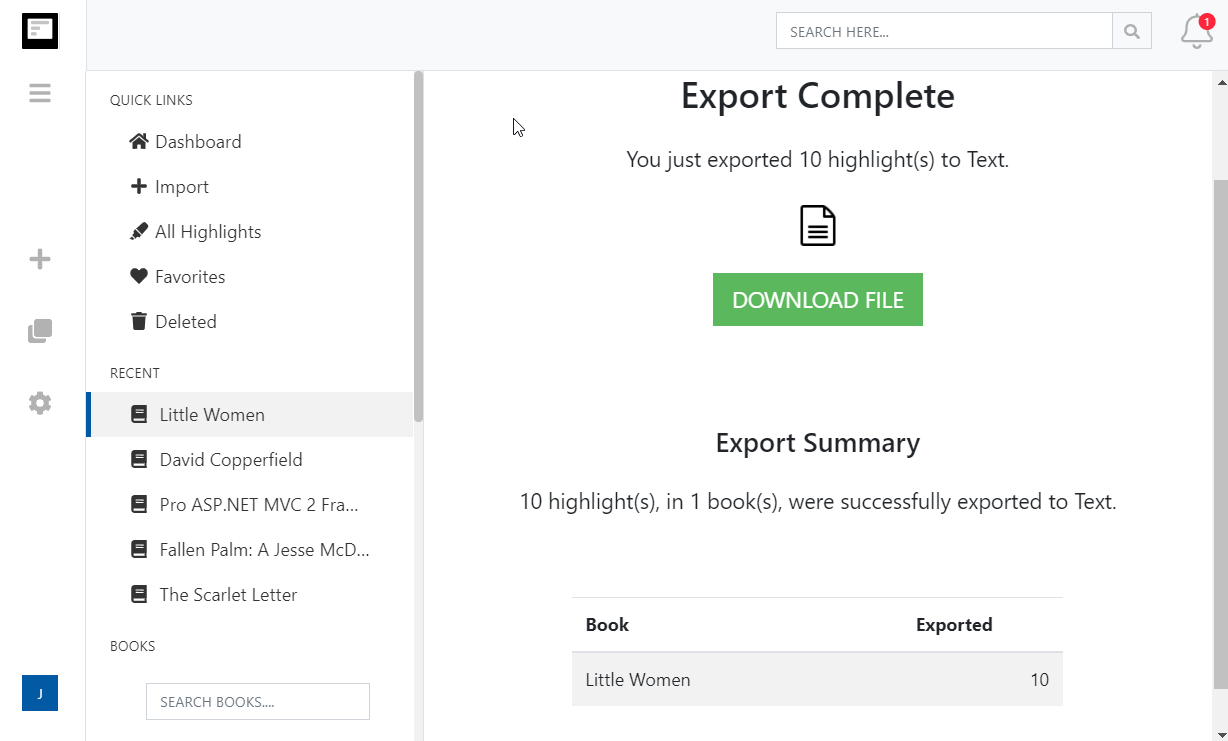
Click Start Export. The file is built in the background and a Download File button appears when it is ready. If you asked for one file per book, they arrive together in a zip.
What you get in JSON
Your highlights as structured data, one object per record, for scripts, databases and your own tools.
- One object per highlight
- A single indented JSON array. Each object has BookTitle, BookAuthor, Content, Location, Page, AnnotationType, CreatedKindle and CreatedWebsite, with ISO 8601 timestamps.
- Notes and tags as arrays
- Include notes and tags in the export options and each record gains a Notes array and a Tags array, so nothing has to be parsed out of the text.
- Build anything on top
- Load it into a spreadsheet, a database, a static site, a spaced-repetition deck or a script that posts a random highlight each morning.
- Or keep it updated in the cloud
- Choose JSON as the file format for Dropbox, Google Drive or OneDrive and the file is rewritten automatically after each import, ready for whatever reads it.
Kindle to JSON questions
- What does the JSON look like?
- A top-level array with one object per record. Every object has BookTitle, BookAuthor, Content, Location, Page, AnnotationType, CreatedKindle and CreatedWebsite. When you include notes and tags, each object also has a Notes array and a Tags array of strings.
- What is the difference between CreatedKindle and CreatedWebsite?
- CreatedKindle is when you made the highlight on your Kindle. CreatedWebsite is when Clippings.io imported it. Both are ISO 8601 strings, so any language parses them.
- What values can AnnotationType take?
- The record type you chose to include: highlight, note, bookmark or clipping. Filter on it if you only want highlights.
- Can I get one file per book?
- Yes. Choose one document per book in the export options and the download is a zip with one JSON file per book, each holding that book's records.
- Is the JSON stable enough to build on?
- The field names above have been unchanged since the format was added, and Clippings.io keeps them stable so scripts do not break. New fields, if any, are added rather than renamed.
- Can I export to JSON on the free plan?
- Yes. On the free plan each exported highlight is cut to its first 100 characters, which is enough to see how the export looks. The professional plan removes the limit, and your first export after upgrading resends everything in full.
Clippings.io also exports Kindle highlights to Notion, Markdown, Dropbox, Google Drive, OneDrive, OneNote, Evernote, Word, Excel, PDF, Text, EPUB, OpenDocument Text and OpenDocument Spreadsheet.
Prêt à vous y mettre ?Commencez avec un compte gratuit dès aujourd'hui.
Surlignez une seule fois, souvenez-vous en pour toujours. Commencez à profiter au mieux des livres que vous lisez sur votre Kindle.
S'inscrire gratuitement