Foire aux questions
Vous ne trouvez pas la réponse que vous cherchez ? Contactez notre équipe de support client
- Comment importer mes surlignements Kindle dans Clippings.io ?
- Utilisez simplement l’extension de navigateur Clippings.io ou téléchargez votre fichier « mes extraits.txt » depuis la page d'importation
- Quelles versions du Kindle prenez-vous en charge ?
- Nous prenons en charge toutes les versions du Kindle d'Amazon. Si vous importez via l'extension de navigateur Clippings.io, nous prenons en charge toutes les versions du Kindle ainsi que tout appareil pouvant exécuter les différentes applications de lecture Kindle, tels que iPad, iPhone et appareils Android. Si vous importez via votre fichier « mes extraits.txt », nous prenons en charge toutes les versions du Kindle qui créent un fichier d'extraits. Pour des instructions pas à pas sur chaque modèle, du Kindle de base au Scribe en passant par l'application Kindle, consultez Surligner sur Kindle.
- Comment exporter mes surlignements Kindle ?
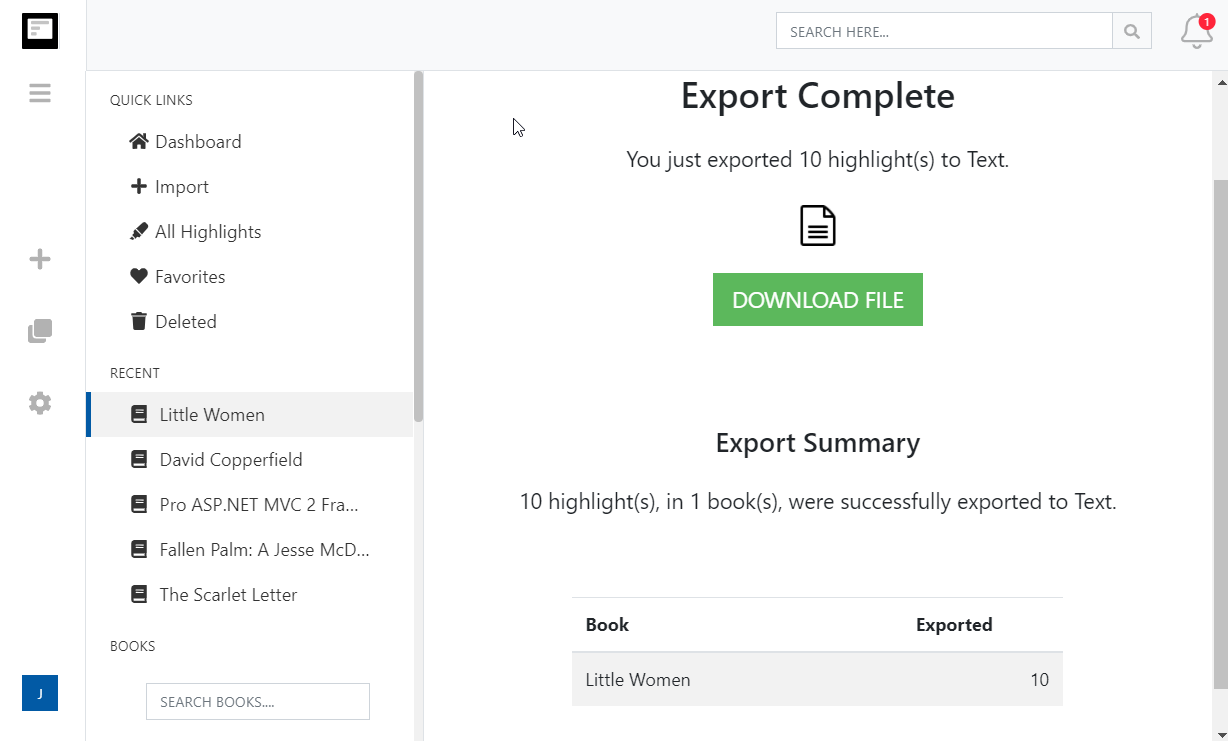
- Exporter vos surlignements Kindle n'a jamais été aussi simple. Accédez simplement à la page d'exportation et choisissez l'intégration ou le format de fichier de destination.
- Peut-on importer des surlignements et des notes Kindle créés sur des documents personnels (documents qui ne proviennent pas d'Amazon) ?
- Oui. Veuillez consulter notre article de blog Comment enregistrer les surlignements Kindle dans des documents personnels
More about Kindle highlights and Clippings.io
- Where are my Kindle highlights stored?
- In up to four places: on the Kindle inside each book, in the My Clippings.txt file on the device, at read.amazon.com/notebook for books bought from Amazon, and in the Kindle app. Each shows a different subset. Where your Kindle highlights are, and how to export them walks through all four.
- How do I delete a Kindle highlight?
- Tap the highlight on the Kindle or in the app and choose Delete, or use the highlight's menu at read.amazon.com/notebook. Deleting in Clippings.io never changes anything on Amazon or the Kindle. See how to delete Kindle highlights.
- Does Clippings.io work with Amazon stores outside the United States?
- Yes. The browser extension has a store picker for amazon.com, .co.uk, .de, .fr, .es, .it, .nl, .ca, .com.mx, .com.br, .com.au, .in and .co.jp, and My Clippings.txt is the same file on every Kindle. Evernote China (印象笔记) is supported as its own export connection.
- Which files can I upload?
- My Clippings.txt from the Kindle, the Notebook export (.html) that the Kindle app emails you, and JSON exports from Clippings.io itself. Uploads are deduplicated against everything you have already imported, so re-uploading a file never doubles your library.
- Is Clippings.io a browser extension or a website?
- Both. Your library lives in the web app at my.clippings.io. The browser extension for Chrome, Edge, Firefox and Brave is the fastest way to import from Amazon; the web app also accepts file uploads. There are no mobile apps.
- What can I export to?
- Notion, Markdown, Dropbox, Google Drive, OneDrive, OneNote, Evernote, Word, Excel, PDF, Text, EPUB, JSON, OpenDocument Text and OpenDocument Spreadsheet. Every destination remembers what it has already received, so a repeat export sends only new highlights; a reset re-sends everything.
- What does the free plan include?
- Unlimited imports from Amazon and from files, deduplication, the highlights explorer with editing, tagging and search, and every export destination with each exported highlight cut to its first 100 characters. The professional plan removes the 100-character limit; see pricing. There is no free trial of the professional plan and no lifetime plan.
- Do exports create duplicates if I run them again?
- No. Clippings.io keeps a record of what each destination has received. Cloud destinations get only the books with new highlights, and a book's note or file is replaced rather than duplicated. If you want everything sent again, reset the destination in Settings, Integrations.
Prêt à vous y mettre ?Commencez avec un compte gratuit dès aujourd'hui.
Surlignez une seule fois, souvenez-vous en pour toujours. Commencez à profiter au mieux des livres que vous lisez sur votre Kindle.
S'inscrire gratuitement