Часто задаваемые вопросы
Не можете найти ответ, который ищете? Свяжитесь с нашей службой поддержки клиентов
- Как мне импортировать свои выделения Kindle в Clippings.io?
- Просто используйте Расширение для браузера Clippings.io или загрузите файл my clippings.txt по ссылке Импортировать страницу
- Какие версии Kindle вы поддерживаете?
- Мы поддерживаем все версии Amazon Kindle. Если вы импортируете через браузерное расширение Clippings.io, мы поддерживаем все версии Kindle, а также любые устройства, поддерживающие различные приложения для чтения Kindle, например устройства iPad, iPhone и Android. Если вы импортируете через файл My Clippings.txt, мы поддерживаем все версии Kindle, которые создают файлы вырезок. Пошаговые инструкции для каждой модели, от базового Kindle до Scribe и приложения Kindle, см. в руководстве Как выделять на Kindle.
- Как экспортировать выделения Kindle?
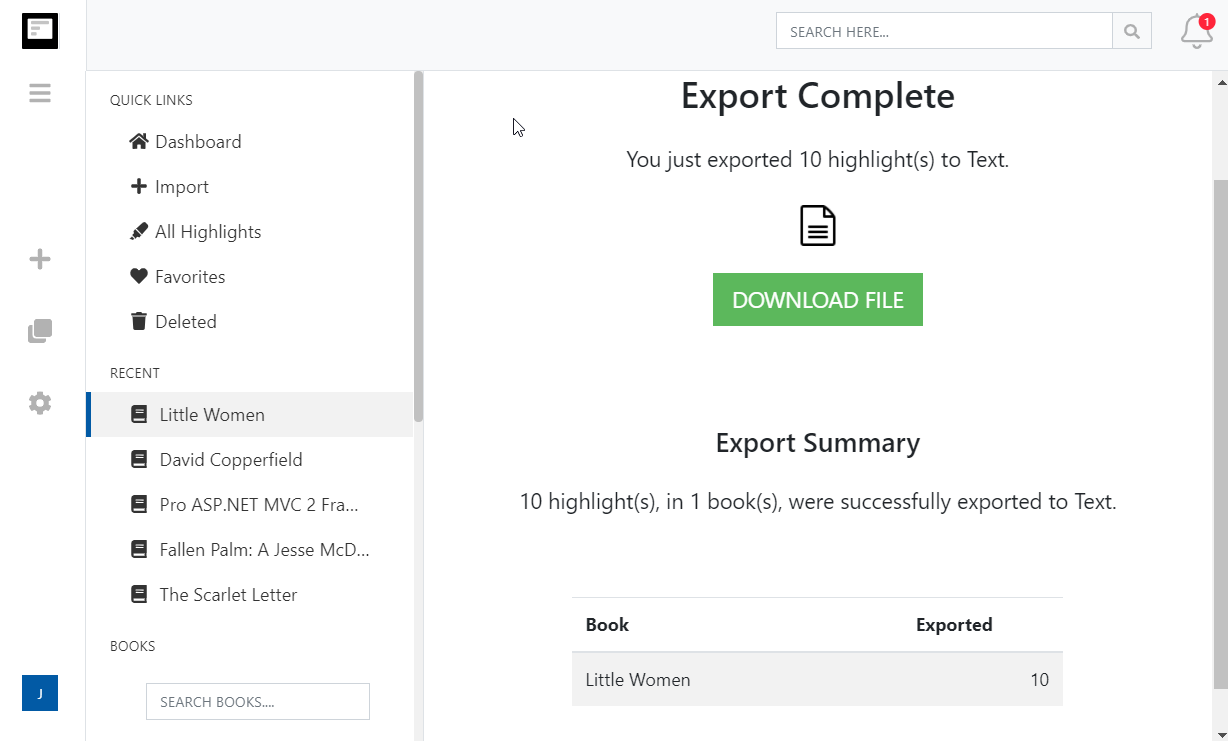
- Еще никогда не было так просто экспортировать выделения Kindle. Просто перейдите по ссылке экспортировать страницу и выберите целевую интеграцию или формат файла.
- Могу ли я импортировать выделения и заметки Kindle, сделанные в личных документах (не на Amazon)?
- Да. См. запись в нашем блоге Как сохранить выделения Kindle в личных документах
More about Kindle highlights and Clippings.io
- Where are my Kindle highlights stored?
- In up to four places: on the Kindle inside each book, in the My Clippings.txt file on the device, at read.amazon.com/notebook for books bought from Amazon, and in the Kindle app. Each shows a different subset. Where your Kindle highlights are, and how to export them walks through all four.
- How do I delete a Kindle highlight?
- Tap the highlight on the Kindle or in the app and choose Delete, or use the highlight's menu at read.amazon.com/notebook. Deleting in Clippings.io never changes anything on Amazon or the Kindle. See how to delete Kindle highlights.
- Does Clippings.io work with Amazon stores outside the United States?
- Yes. The browser extension has a store picker for amazon.com, .co.uk, .de, .fr, .es, .it, .nl, .ca, .com.mx, .com.br, .com.au, .in and .co.jp, and My Clippings.txt is the same file on every Kindle. Evernote China (印象笔记) is supported as its own export connection.
- Which files can I upload?
- My Clippings.txt from the Kindle, the Notebook export (.html) that the Kindle app emails you, and JSON exports from Clippings.io itself. Uploads are deduplicated against everything you have already imported, so re-uploading a file never doubles your library.
- Is Clippings.io a browser extension or a website?
- Both. Your library lives in the web app at my.clippings.io. The browser extension for Chrome, Edge, Firefox and Brave is the fastest way to import from Amazon; the web app also accepts file uploads. There are no mobile apps.
- What can I export to?
- Notion, Markdown, Dropbox, Google Drive, OneDrive, OneNote, Evernote, Word, Excel, PDF, Text, EPUB, JSON, OpenDocument Text and OpenDocument Spreadsheet. Every destination remembers what it has already received, so a repeat export sends only new highlights; a reset re-sends everything.
- What does the free plan include?
- Unlimited imports from Amazon and from files, deduplication, the highlights explorer with editing, tagging and search, and every export destination with each exported highlight cut to its first 100 characters. The professional plan removes the 100-character limit; see pricing. There is no free trial of the professional plan and no lifetime plan.
- Do exports create duplicates if I run them again?
- No. Clippings.io keeps a record of what each destination has received. Cloud destinations get only the books with new highlights, and a book's note or file is replaced rather than duplicated. If you want everything sent again, reset the destination in Settings, Integrations.
Готовы узнать подробнее?Начните с бесплатным аккаунтом сегодня.
Выделите один раз, запомните навсегда. Начните получать максимальную пользу от книг, которые вы читаете, на своем устройстве Kindle.
Зарегистрируйтесь бесплатно