Выделения Kindle: как найти, посмотреть и экспортировать
Kindle highlights are the passages you mark while reading. Amazon keeps them in up to four places, each showing a different subset, and none of them exports everything at once. Here is where each one lives, what it leaves out, and how to bring them all together.
Where your Kindle highlights are
- On the Kindle, inside each book
- Open a book, tap the top of the page and choose the notebook (labelled Notes or Notebook depending on the software version). It lists that book's highlights, notes and bookmarks. One book at a time, on the device only.
- On the Kindle, in My Clippings.txt
- Every highlight, note and bookmark from every book is appended to one text file, documents/My Clippings.txt, which you reach by plugging the Kindle into a computer. It is the only place highlights from personal documents and sideloaded books are recorded. Books past their publisher's clipping limit get a placeholder line instead of the text.
- On Amazon, at read.amazon.com/notebook
- Amazon's Kindle notebook page shows highlights and notes for books bought from that Amazon store, synced from every device you read on, with their colours. Personal documents and books from other stores are not there. Each store has its own page, for example read.amazon.co.uk/notebook.
- In the Kindle app, and on Goodreads
- The Kindle app for iPhone, Android, Mac and PC has the same per-book notebook as the device, plus an export that emails you one book's highlights as a file. If you have linked Amazon to Goodreads, highlights from Amazon-bought books appear on your Goodreads profile too.
Made a highlight by mistake, or want a clean slate? How to delete Kindle highlights covers the device, the app, Amazon and My Clippings.txt.
How to export all your Kindle highlights
Clippings.io reads from two of those places, the Amazon notebook page and My Clippings.txt, merges them into one searchable library and exports it wherever you keep your notes.
- 1
Import from Amazon with the browser extension
Install the Clippings.io extension for Chrome, Edge, Firefox or Brave, open read.amazon.com/notebook and click Import. It collects every book's highlights and notes, picks out only books with new highlights on later runs, and can sync automatically while your browser is open. Thirteen Amazon stores are supported.
- 2
Upload My Clippings.txt for everything else
Copy the file from the Kindle over USB and upload it, or upload the notebook export the Kindle app emailed you. Clippings.io splits it back into books, keeps personal documents, and removes duplicates against what the extension already imported.
- 3
Export
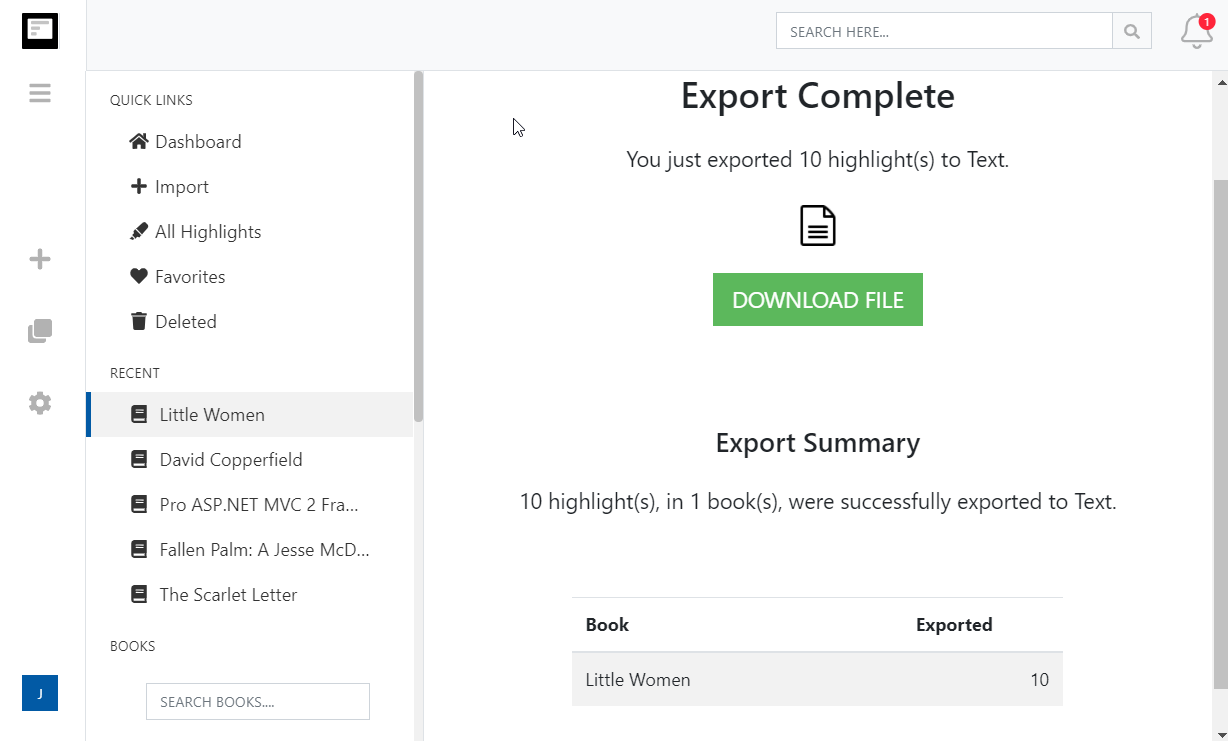
Export your whole library, one book, a tag or a search to Evernote, Notion, Dropbox, Google Drive, OneDrive, OneNote, Word, Excel, PDF, Text, Markdown, EPUB, JSON, OpenDocument Text or OpenDocument Spreadsheet. Every destination remembers what it has already received, so re-exports send only what is new.
Kindle highlights questions
- Where does my Kindle store highlights?
- In up to four places. On the Kindle itself, in each book's notebook and in a file called My Clippings.txt. On Amazon's servers, shown at read.amazon.com/notebook, for books bought from the Kindle store. In the Kindle app's notebook on your phone, tablet or computer. And on Goodreads, if you have linked your Amazon account.
- Why are some of my highlights missing from read.amazon.com/notebook?
- That page only shows books bought from the Amazon store you are signed in to. Highlights in personal documents, sideloaded books and books from a different Amazon store are not there. They are in My Clippings.txt on the Kindle, and in the notebook page of the store you bought them from, such as read.amazon.co.uk/notebook.
- Why does my Kindle say I have reached the clipping limit?
- Publishers can cap how much of a book may be copied out. Once you pass that cap, new highlights still show inside the book, but My Clippings.txt records the line 'You have reached the clipping limit for this item' instead of the text. The Amazon notebook page is not affected by the cap, which is why Clippings.io imports from there first.
- How do I get highlights from books I did not buy on Amazon?
- Plug the Kindle into a computer with its USB cable, open the Kindle drive, then the documents folder, and copy My Clippings.txt. Every highlight, note and bookmark from every book, including personal documents, is in that one text file. Upload it to Clippings.io and it is split back into books and deduplicated against anything you already imported.
- How do I export all my Kindle highlights at once?
- Sign up to Clippings.io, install the browser extension, open read.amazon.com/notebook and click Import. The extension collects every book's highlights and notes. Add My Clippings.txt for anything not on Amazon, then export the whole library, one book, or a search to Evernote, Notion, Dropbox, Google Drive, OneDrive, OneNote, Word, Excel, PDF, Markdown, EPUB, JSON or plain text. Importing and browsing are free; the free plan cuts each exported highlight to 100 characters and the professional plan removes the limit.
- Does this work outside the United States?
- Yes. The browser extension has a store picker covering amazon.com, .co.uk, .de, .fr, .es, .it, .nl, .ca, .com.mx, .com.br, .com.au, .in and .co.jp, and My Clippings.txt is the same file on every Kindle.
Готовы узнать подробнее?Начните с бесплатным аккаунтом сегодня.
Выделите один раз, запомните навсегда. Начните получать максимальную пользу от книг, которые вы читаете, на своем устройстве Kindle.
Зарегистрируйтесь бесплатно