Экспорт выделений Kindle в Google Диск
Отправляйте выделения и заметки Kindle в папку Clippings.io на Google Диске, готовые к открытию в Google Документах или Таблицах, и обновляйте её автоматически.
How to export Kindle highlights to Google Drive
- 1
Import your Kindle highlights
Use the Clippings.io browser extension to pull in highlights from books bought on Amazon, or upload the My Clippings.txt file from your Kindle to include personal documents. Duplicates are removed automatically.
- 2
Connect Google Drive
Open Settings, Integrations in Clippings.io, choose Google Drive and sign in with Google. Clippings.io only asks for permission to manage the files it creates itself, never your other documents.
- 3
Export
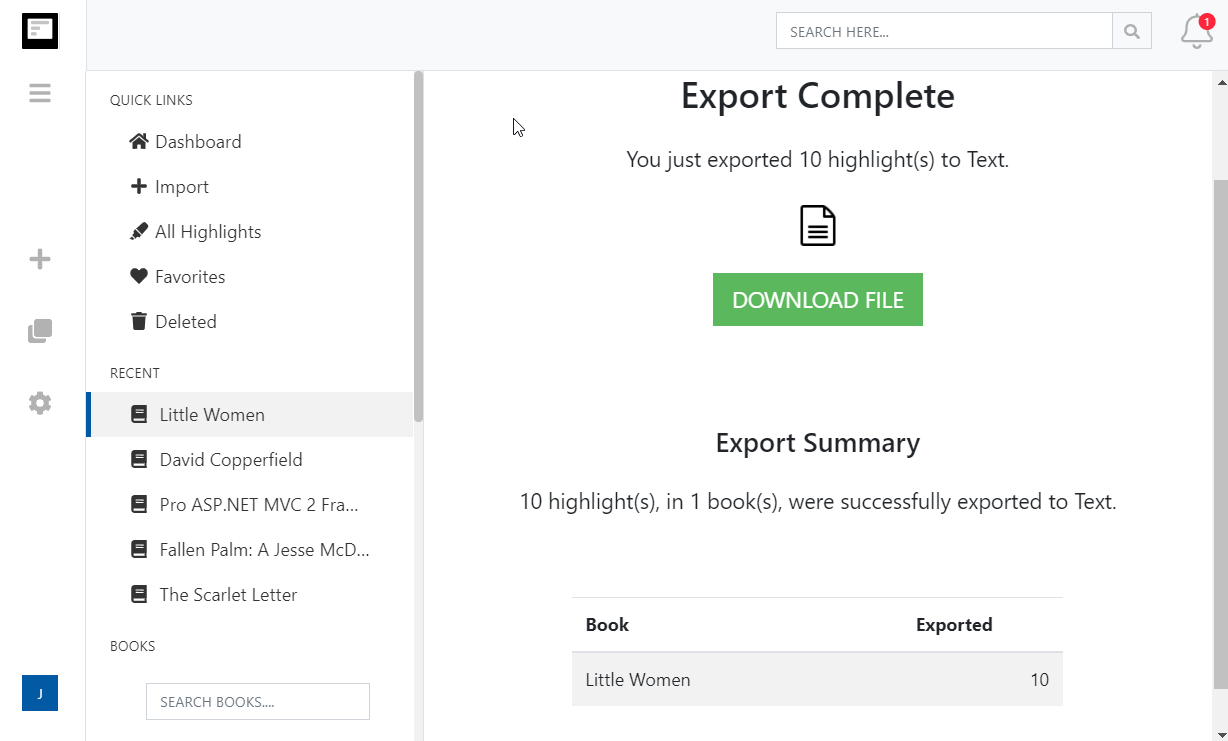
Select the books or highlights you want, open the Export menu and pick Google Drive. Choose Word, PDF, Markdown or any other file format, one file for everything or one per book, and click Start Export.
What you get in Google Drive
A Clippings.io folder in My Drive with your highlights as files you can open in Google Docs, Sheets or anything else.
- A Clippings.io folder in My Drive
- Clippings.io creates the folder on the first export and reuses it afterwards. Move it, star it or share it, and Drive's search finds your highlights alongside everything else.
- Pick the file format: Word, PDF, Excel, Text, Markdown, JSON, OpenDocument Text or OpenDocument Spreadsheet
- Word opens straight into Google Docs and Excel into Google Sheets. Choose one file for your whole library or one file per book.
- Files are updated in place
- When a book has new highlights its file is updated rather than duplicated, so the folder never fills with copies. Books with nothing new are not touched.
- Automatic exports
- Turn on Auto Export and every import is pushed to Google Drive as soon as it finishes, so the folder is always current.
- Расширенные параметры форматирования экспортирумых материалов
- Определите, как именно вы хотите отформатировать выделения Kindle, включая параметры стилей цитирования (Чикаго, MLA, APA) и возможность включать теги и заметки.
Kindle to Google Drive questions
- Where do my Kindle highlights end up in Google Drive?
- In a folder called Clippings.io at the top of My Drive. Clippings.io creates it on the first export if it does not exist and writes one file per book or a single KindleHighlights file into it, depending on the export options you choose.
- Can I open the export in Google Docs or Google Sheets?
- Yes. Export as Word and Drive opens it in Google Docs; export as Excel or OpenDocument Spreadsheet and it opens in Google Sheets. PDF, Text, Markdown and JSON open in Drive's built-in viewers.
- What happens if I export the same book twice?
- The existing file for that book is updated with the latest highlights, so there are no duplicate files and no duplicate highlights.
- What if I edit the exported files in Google Drive?
- Those edits are lost the next time the book is exported, because Clippings.io replaces the whole file. Edit highlights and notes in Clippings.io instead and they come across on every export, or copy the files out of the Clippings.io folder before editing them.
- How much of my Google Drive can Clippings.io see?
- Only files and folders it created. Clippings.io requests Google's drive.file permission, which does not include your other documents. You can disconnect at any time from Settings, Integrations in Clippings.io or from your Google account's connected apps.
- Can I export to Google Drive on the free plan?
- Yes. On the free plan each exported highlight is cut to its first 100 characters, which is enough to see how the export looks. The professional plan removes the limit, and your first export after upgrading resends everything in full.
Clippings.io also exports Kindle highlights to Notion, Markdown, Dropbox, OneDrive, OneNote, Evernote, Word, Excel, PDF, Text, EPUB, JSON, OpenDocument Text and OpenDocument Spreadsheet.
Готовы узнать подробнее?Начните с бесплатным аккаунтом сегодня.
Выделите один раз, запомните навсегда. Начните получать максимальную пользу от книг, которые вы читаете, на своем устройстве Kindle.
Зарегистрируйтесь бесплатно