Frequently asked questions
Can’t find the answer you’re looking for? Reach out to our customer support team
- How can I import my Kindle Highlights into Clippings.io?
- Simply use the Clippings.io Browser Extension or upload your 'my clippings.txt' file on the Import page
- Which Kindle versions do you support?
- We support of all the versions of the Amazon Kindle. If you are importing via the Clippings.io Browser Extension we support all the Kindle versions as well as any device which supports the various Kindle reader apps , for example, the iPad, iPhone and Android devices. If you are importing via your 'My Clippings.txt' file we support all the Kindle versions which create a clippings file. For more information of the Kindle family of ereaders please refer to this wikipedia page
- How do I export my Kindle Highlights?
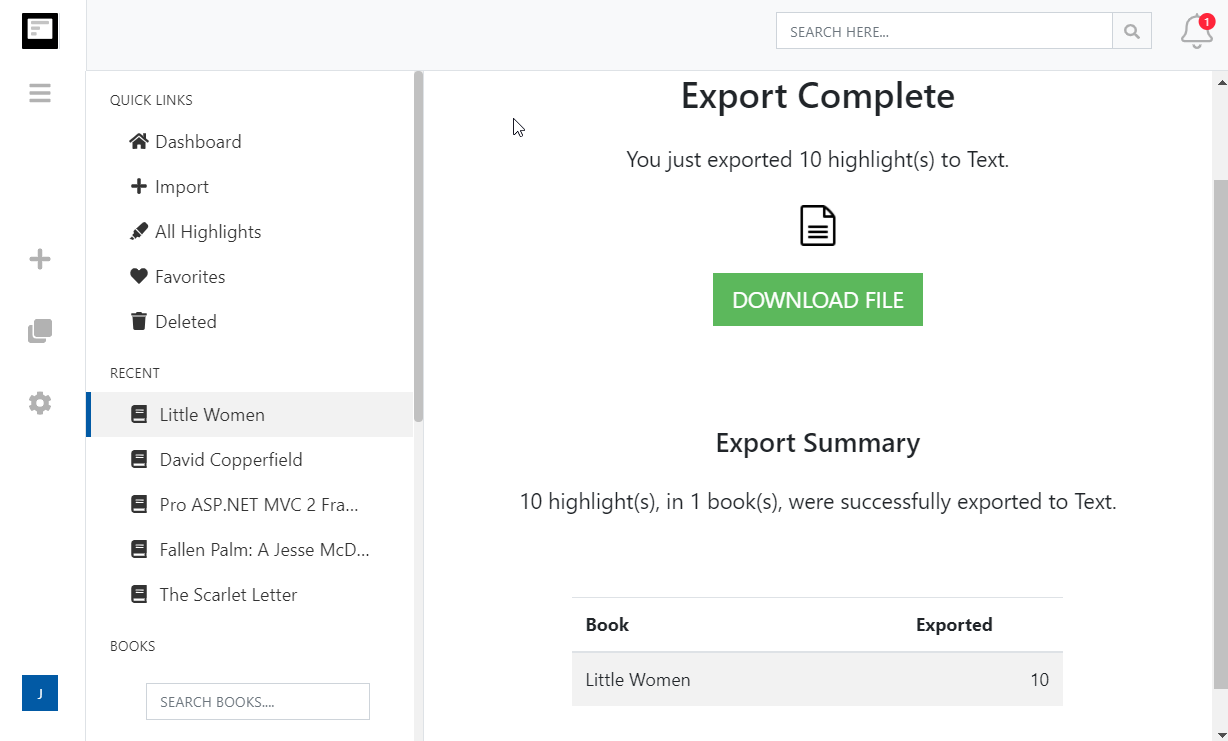
- Exporting your Kindle highlights has never been so easy. Simply go to the export page and choose the destination integration or file format.
- Can I import Kindle Highlights and Notes made on personal documents (non-Amazon documents)?
- Yes. Please see our blog post How to save Kindle highlights in personal documents
More about Kindle highlights and Clippings.io
- Where are my Kindle highlights stored?
- In up to four places: on the Kindle inside each book, in the My Clippings.txt file on the device, at read.amazon.com/notebook for books bought from Amazon, and in the Kindle app. Each shows a different subset. Where your Kindle highlights are, and how to export them walks through all four.
- How do I delete a Kindle highlight?
- Tap the highlight on the Kindle or in the app and choose Delete, or use the highlight's menu at read.amazon.com/notebook. Deleting in Clippings.io never changes anything on Amazon or the Kindle. See how to delete Kindle highlights.
- Does Clippings.io work with Amazon stores outside the United States?
- Yes. The browser extension has a store picker for amazon.com, .co.uk, .de, .fr, .es, .it, .nl, .ca, .com.mx, .com.br, .com.au, .in and .co.jp, and My Clippings.txt is the same file on every Kindle. Evernote China (印象笔记) is supported as its own export connection.
- Which files can I upload?
- My Clippings.txt from the Kindle, the Notebook export (.html) that the Kindle app emails you, and JSON exports from Clippings.io itself. Uploads are deduplicated against everything you have already imported, so re-uploading a file never doubles your library.
- Is Clippings.io a browser extension or a website?
- Both. Your library lives in the web app at my.clippings.io. The browser extension for Chrome, Edge, Firefox and Brave is the fastest way to import from Amazon; the web app also accepts file uploads. There are no mobile apps.
- What can I export to?
- Evernote, Notion, Dropbox, Google Drive, OneDrive, OneNote, Word, Excel, PDF, Text, Markdown, EPUB, JSON, OpenDocument Text and OpenDocument Spreadsheet. Every destination remembers what it has already received, so a repeat export sends only new highlights; a reset re-sends everything.
- What does the free plan include?
- Unlimited imports from Amazon and from files, deduplication, the highlights explorer with editing, tagging and search, and every export destination with each exported highlight cut to its first 100 characters. The professional plan removes the 100-character limit; see pricing. There is no free trial of the professional plan and no lifetime plan.
- Do exports create duplicates if I run them again?
- No. Clippings.io keeps a record of what each destination has received. Cloud destinations get only the books with new highlights, and a book's note or file is replaced rather than duplicated. If you want everything sent again, reset the destination in Settings, Integrations.
Ready to dive in?Start with a free account today.
Highlight once, remember forever. Start making the most out the books you read on your kindle.
Sign up for free