
Exportez vos surlignements Kindle en PDF
Téléchargez vos surlignements et notes Kindle sous forme de PDF propre et imprimable, avec un titre par livre, des notes en italique et le style de citation de votre choix.
How to export Kindle highlights to PDF
- 1
Import your Kindle highlights
Use the Clippings.io browser extension to pull in highlights from books bought on Amazon, or upload the My Clippings.txt file from your Kindle to include personal documents. Duplicates are removed automatically.
- 2
Choose PDF
Select the books or highlights you want, open Export and pick PDF on the File Downloads tab. Open Show Advanced Export Options to choose a citation style, the sort order, which annotation types to include and whether each book starts on a new page.
- 3
Download
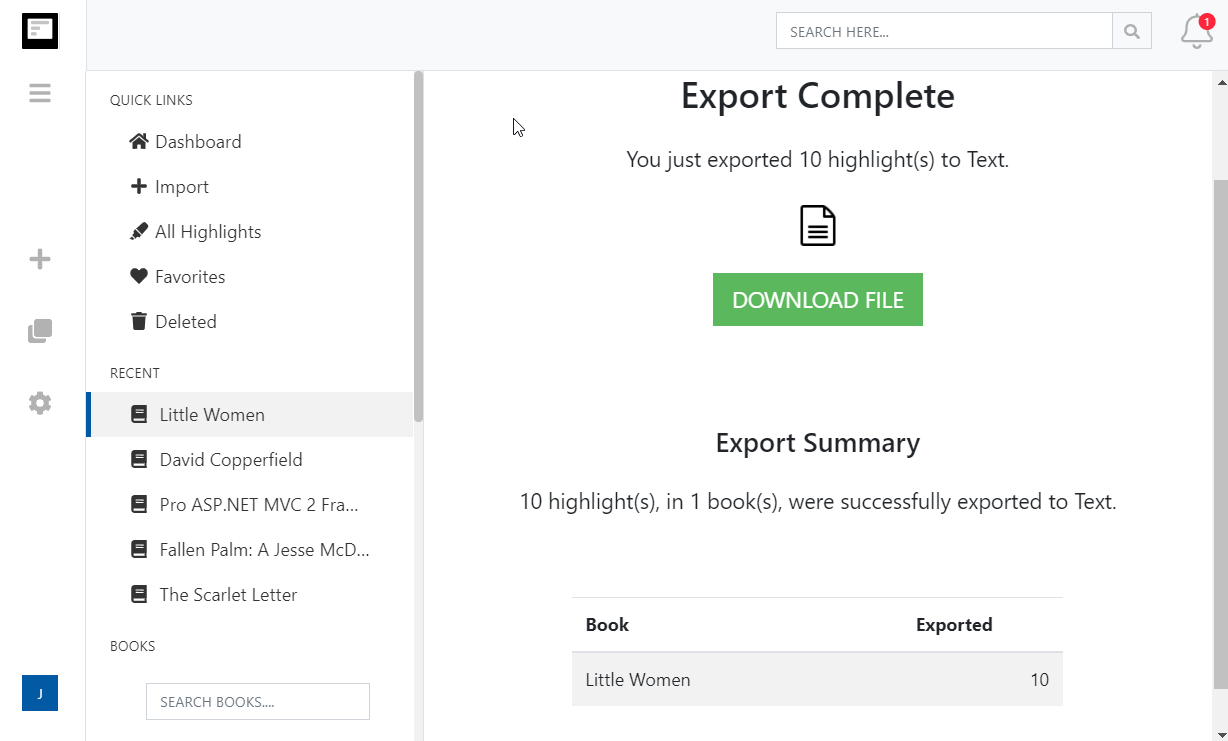
Click Start Export. The file is built in the background and a Download File button appears when it is ready. If you asked for one file per book, they arrive together in a zip.
What you get in PDF
A clean, printable document of your highlights that looks the same on every screen and every printer.
- Made for printing
- Bold 16pt book titles, 12pt body text, italic notes and tags, and comfortable margins. Start each book on a new page and print your whole library as a reading journal.
- Every language renders
- Clippings.io bundles the Noto fonts, so Japanese, Chinese, Korean, Cyrillic, Greek and accented text all appear correctly instead of as empty boxes.
- Citations included
- Choose Simple, Chicago, APA or MLA and each highlight carries its author, title and location, ready to hand in or share.
- One PDF or one per book
- Download your whole library as a single PDF, or one PDF per book in a zip. Send a book's PDF back to your Kindle, tablet or phone for review.
- Options avancées de mise en forme des exportations
- Définissez précisément la mise en forme de vos surlignements Kindle, notamment avec des options de styles de citation (Chicago, MLA, APA) et la possibilité d'inclure des étiquettes et des notes.
Kindle to PDF questions
- How is the PDF laid out?
- Each book title is a bold heading followed by its highlights in the order you chose. Notes you attached to a highlight and any tags appear in italics underneath it. You can start each book on a new page in the export options.
- Can I print my Kindle highlights?
- Yes. The PDF uses standard fonts, 12pt text and generous margins, so it prints cleanly on any printer. Choose one file per book to print a single book at a time.
- Will highlights in Japanese, Chinese or Russian render?
- Yes. The PDF embeds the Noto family of fonts, which cover those scripts and most others, so nothing comes out as missing-glyph boxes.
- Can I include citations?
- Yes. Choose Simple, Chicago, APA or MLA in the export options and every highlight is followed by its citation. Preview it before you export.
- Can I edit the PDF afterwards?
- PDFs are not meant for editing. If you want to edit or rearrange the text, export to Word or Markdown instead, or edit the highlights in Clippings.io and export again.
- Can I export to PDF on the free plan?
- Yes. On the free plan each exported highlight is cut to its first 100 characters, which is enough to see how the export looks. The professional plan removes the limit, and your first export after upgrading resends everything in full.
Clippings.io also exports Kindle highlights to Notion, Markdown, Dropbox, Google Drive, OneDrive, OneNote, Evernote, Word, Excel, Text, EPUB, JSON, OpenDocument Text and OpenDocument Spreadsheet.
Prêt à vous y mettre ?Commencez avec un compte gratuit dès aujourd'hui.
Surlignez une seule fois, souvenez-vous en pour toujours. Commencez à profiter au mieux des livres que vous lisez sur votre Kindle.
S'inscrire gratuitement