
Esporta le evidenziazioni di Kindle in Excel
Scarica evidenziazioni e note di Kindle come foglio Excel, un’evidenziazione per riga con titolo, autore, posizione, data, tag e note in colonne separate.
How to export Kindle highlights to Excel
- 1
Import your Kindle highlights
Use the Clippings.io browser extension to pull in highlights from books bought on Amazon, or upload the My Clippings.txt file from your Kindle to include personal documents. Duplicates are removed automatically.
- 2
Choose Excel
Select the books or highlights you want, open Export and pick Excel on the File Downloads tab. Excel 2007 (.xlsx) suits any current spreadsheet app; Excel 2003 (.xls) is there for older software. Open Show Advanced Export Options to choose which annotation types to include and how rows are sorted.
- 3
Download
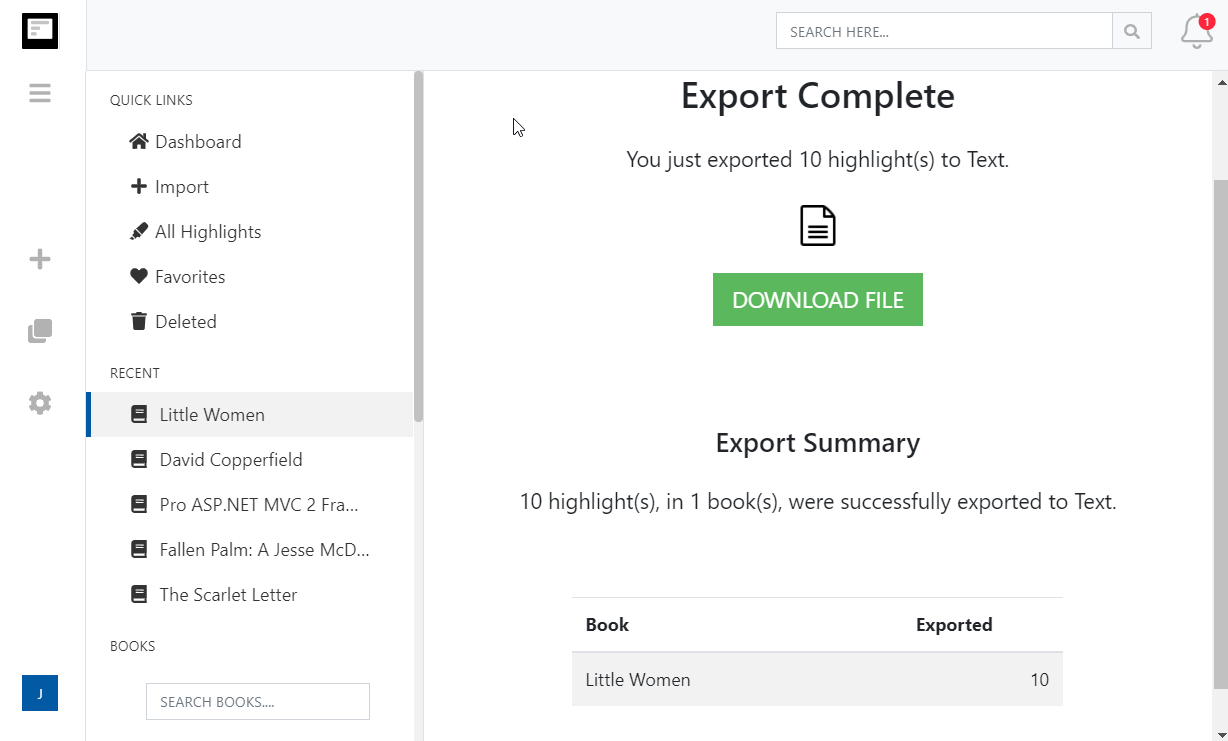
Click Start Export. The file is built in the background and a Download File button appears when it is ready. If you asked for one file per book, they arrive together in a zip.
What you get in Excel
One highlight per row, one fact per column, so your reading becomes data you can sort, filter and chart.
- Nine tidy columns
- Title, Author, Type, Created, Location, Page, Content, Tags and Notes, with a bold header row on a sheet called Highlights. Nothing merged, nothing to clean up.
- Filter, sort and pivot
- Filter to one author, sort by the date you highlighted, count highlights per book with a pivot table, or look up a quote by location.
- One workbook or one per book
- Keep your whole library in a single sheet, or download one workbook per book as a zip. Highlights, notes, bookmarks and clippings each carry their type in the Type column.
- Or keep a sheet in the cloud
- Choose Excel as the file format for Dropbox, Google Drive or OneDrive and the spreadsheet is updated automatically after each import. In Google Drive it opens straight into Sheets.
Kindle to Excel questions
- Which columns does the spreadsheet have?
- Title, Author, Type, Created, Location, Page, Content, Tags and Notes, in that order, with a bold header row. Type says whether the row is a highlight, note, bookmark or clipping. Tags and Notes are filled in when you include them in the export options.
- Which Excel formats can I download?
- Excel 2007 and later (.xlsx) and Excel 97 to 2003 (.xls). Google Sheets, Numbers and LibreOffice open .xlsx too, and there is a separate OpenDocument Spreadsheet (.ods) export.
- Can I choose a citation style for the spreadsheet?
- No. Citations only apply to the document formats such as Word and PDF. In a spreadsheet the author, title, location and page are already in their own columns, so you can build any citation you need with a formula.
- Can I export just one book or one tag?
- Yes. Select a book, a tag, an import or a search result in the left-hand menu and click Export in the toolbar. Only those rows go into the spreadsheet.
- Are dates and locations real values?
- Created holds the date and time the highlight was made on your Kindle, and Location and Page hold the Kindle location and page number where Amazon provides one, so you can sort and filter on them.
- Can I export to Excel on the free plan?
- Yes. On the free plan each exported highlight is cut to its first 100 characters, which is enough to see how the export looks. The professional plan removes the limit, and your first export after upgrading resends everything in full.
Clippings.io also exports Kindle highlights to Notion, Markdown, Dropbox, Google Drive, OneDrive, OneNote, Evernote, Word, PDF, Text, EPUB, JSON, OpenDocument Text and OpenDocument Spreadsheet.
Pronto a partecipare?Inizia con un account gratuito oggi stesso.
Evidenzia una volta, ricorda per sempre. Inizia a ottenere il massimo dai libri che leggi sul tuo Kindle.
Iscriviti gratis