
Esporta le evidenziazioni di Kindle in Markdown
Scarica evidenziazioni e note di Kindle come file Markdown con un titolo per libro, pronti per Obsidian, Logseq o qualsiasi app di note.
How to export Kindle highlights to Markdown
- 1
Import your Kindle highlights
Use the Clippings.io browser extension to pull in highlights from books bought on Amazon, or upload the My Clippings.txt file from your Kindle to include personal documents. Duplicates are removed automatically.
- 2
Choose Markdown
Select the books or highlights you want, open Export and pick Markdown on the File Downloads tab. Choose one file per book if you use Obsidian, Logseq or another notes vault, so each book becomes its own note. Open Show Advanced Export Options to pick a citation style and sort order.
- 3
Download
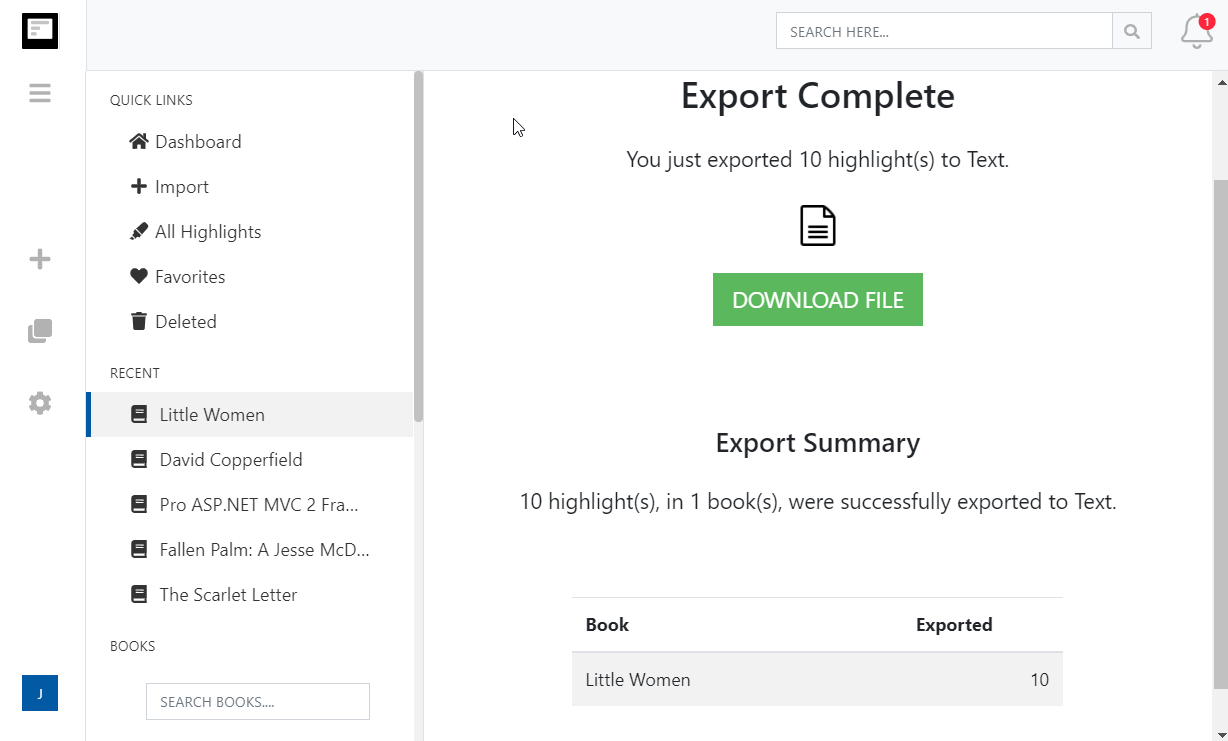
Click Start Export. The file is built in the background and a Download File button appears when it is ready. If you asked for one file per book, they arrive together in a zip.
What you get in Markdown
Plain .md files that drop straight into Obsidian, Logseq, Bear, iA Writer or a static site.
- A heading per book
- Each book is introduced with a level-two heading of its title and author, followed by its highlights as paragraphs with notes and tags beneath them.
- One note per book
- Choose one file per book and download a zip of .md files named after each title. Unzip it into your vault and every book is a note you can link to.
- Ready for your knowledge base
- Because it is plain Markdown you can add wikilinks, tags and your own thoughts on top, and re-export later to pick up new highlights.
- Or sync it through the cloud
- Choose Markdown as the file format for Dropbox, Google Drive or OneDrive and point your notes app at the Clippings.io folder. New highlights arrive automatically after each import.
- Opzioni avanzate di formattazione dell'esportazione
- Definisci esattamente come vorresti che le tue evidenziazioni di Kindle siano formattate, comprese le opzioni per gli stili di citazione (Chicago, MLA, APA) e la possibilità di includere etichette e note.
Kindle to Markdown questions
- How is the Markdown structured?
- Each book starts with a level-two heading containing its title and author. Every highlight is a paragraph separated by a blank line, notes attached to a highlight follow it, and a Tags line lists any tags. There is no front matter, so you can add your own.
- Does it work with Obsidian or Logseq?
- Yes. Choose one file per book, unzip the download into your vault and each book becomes a note named after its title. For an always-current vault, export Markdown to Dropbox, Google Drive or OneDrive with Auto Export on and sync that folder.
- What happens to my own notes in the exported files?
- Downloads never touch existing files, so nothing is overwritten unless you replace the file yourself. If you export to a cloud folder, the book's file is replaced on each export, so keep your own thoughts in a separate note that links to it.
- Can I include citations?
- Yes. Choose Simple, Chicago, APA or MLA in the export options and every highlight ends with its author, title and Kindle location or page.
- Can I get one file for my whole library instead?
- Yes. Choose one document in the export options and everything goes into a single .md file with a heading per book, which suits a single reading-notes page.
- Can I export to Markdown on the free plan?
- Yes. On the free plan each exported highlight is cut to its first 100 characters, which is enough to see how the export looks. The professional plan removes the limit, and your first export after upgrading resends everything in full.
Clippings.io also exports Kindle highlights to Notion, Dropbox, Google Drive, OneDrive, OneNote, Evernote, Word, Excel, PDF, Text, EPUB, JSON, OpenDocument Text and OpenDocument Spreadsheet.
Pronto a partecipare?Inizia con un account gratuito oggi stesso.
Evidenzia una volta, ricorda per sempre. Inizia a ottenere il massimo dai libri che leggi sul tuo Kindle.
Iscriviti gratis