Kindle-Highlights nach Notion exportieren
Übertragen Sie alle Kindle-Highlights und Notizen in eine Notion-Datenbank, eine Seite pro Buch, und halten Sie sie mit einem Klick aktuell.
How to export Kindle highlights to Notion
- 1
Import your Kindle highlights
Use the Clippings.io browser extension to pull in highlights from books bought on Amazon, or upload the My Clippings.txt file from your Kindle to include personal documents. Duplicates are removed automatically.
- 2
Connect Notion
Create a page called Clippings.io anywhere in your Notion workspace. Then open Settings, Integrations in Clippings.io, choose Notion and share that page with the integration when Notion asks.
- 3
Export
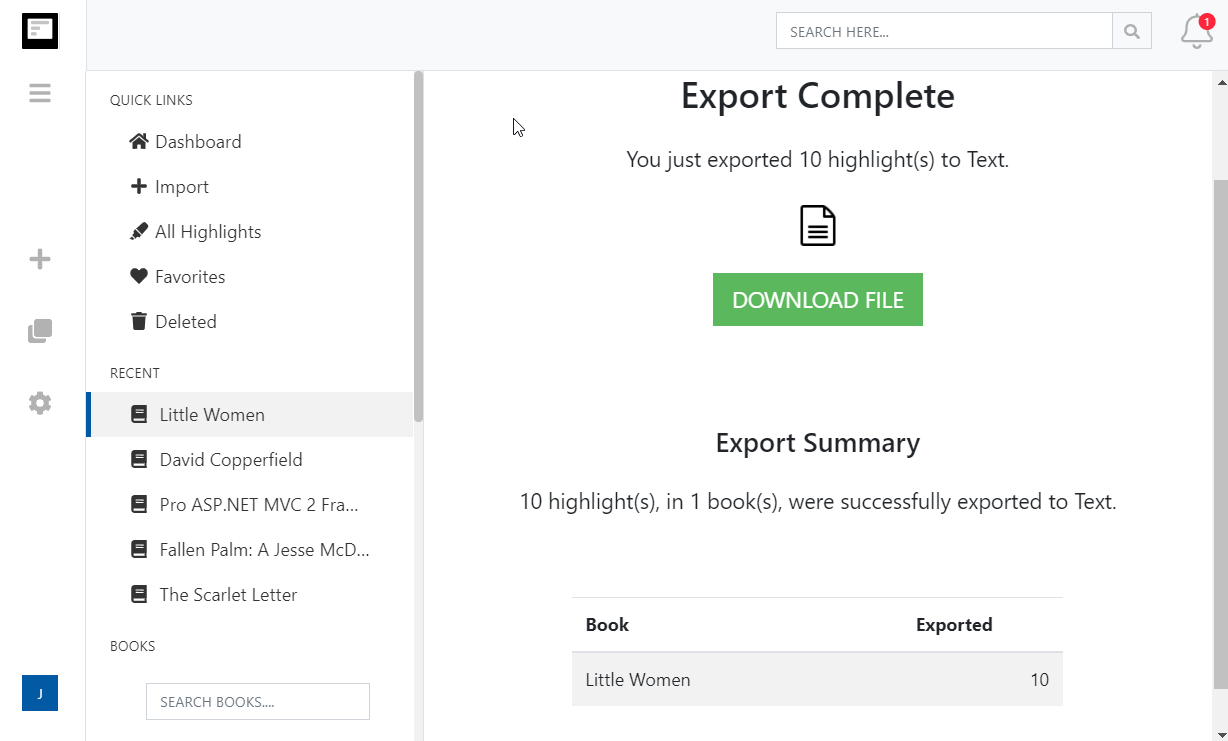
Select the books or highlights you want, open the Export menu and pick Notion. Clippings.io creates a Clippings.io database under your page and writes one page per book.
What you get in Notion
A reading database you can filter, sort, link and build on, not a wall of pasted text.
- A database of every book you have highlighted
- Each book is a row with its cover, title, author and number of highlights as Notion properties. Add your own properties, views and relations on top.
- A page per book with every highlight and note
- Highlights and the notes you attached to them become individual blocks, so you can quote, move and link them like anything else in Notion.
- Re-export without duplicates
- Export a book again after you finish it and its page is replaced with the latest highlights. New imports can be exported automatically, so Notion stays in step with your Kindle.
- Erweiterte Exportformatierungsoptionen
- Legen Sie genau fest, wie Ihre Kindle-Highlights formatiert werden sollen, inklusive Optionen für Zitierweisen (Chicago, MLA, APA) und die Möglichkeit, Tags und Notizen einzufügen.
Kindle to Notion questions
- Do I need a paid Notion plan to export my Kindle highlights?
- No. Clippings.io uses Notion's official API and works with free and paid Notion workspaces alike.
- Where do my Kindle highlights end up in Notion?
- In a database called Clippings.io, created inside the Notion page you share with the integration. Every book becomes one page in that database, with its cover, author and highlight count as properties and each highlight and note as a block on the page.
- What happens if I export the same book twice?
- The book's page is replaced with the latest highlights, so you never get duplicate pages or duplicate highlights. Edits you made to highlights and notes in Clippings.io come across with it.
- Can I export highlights from personal documents and side-loaded books?
- Yes. Upload your Kindle's My Clippings.txt file to import highlights from personal documents, then export them to Notion like any other book. Highlights on Amazon-purchased books can also be imported with the browser extension.
- What can the Clippings.io integration see in my Notion workspace?
- Only the pages you explicitly share with it. Notion asks you to pick those pages when you connect, and you can disconnect Notion at any time from Settings, Integrations in Clippings.io.
- How long does an export to Notion take?
- A few seconds per book. Notion's API accepts about three requests a second, so a large library is written over several minutes. The export runs in the background and you can carry on using Clippings.io.
Clippings.io also exports Kindle highlights to Markdown, Dropbox, Google Drive, OneDrive, OneNote, Evernote, Word, Excel, PDF, Text, EPUB, JSON, OpenDocument Text and OpenDocument Spreadsheet.
Bereit, einzutauchen?Fangen Sie noch heute mit einem kostenlosen Konto an.
Einmal markieren, für immer merken. Machen Sie das Beste aus den Büchern, die Sie auf Ihrem Kindle lesen.
Kostenlos registrieren