
Kindle-Highlights als Textdatei exportieren
Laden Sie Ihre Kindle-Highlights und Notizen als sauberen Klartext herunter, ein Highlight pro Absatz, ohne Duplikate und ohne die Trennzeilen aus My Clippings.txt.
How to export Kindle highlights to Text
- 1
Import your Kindle highlights
Use the Clippings.io browser extension to pull in highlights from books bought on Amazon, or upload the My Clippings.txt file from your Kindle to include personal documents. Duplicates are removed automatically.
- 2
Choose Text
Select the books or highlights you want, open Export and pick Text on the File Downloads tab. Open Show Advanced Export Options to choose a citation style, the sort order, which annotation types to include and whether each book is introduced by its title.
- 3
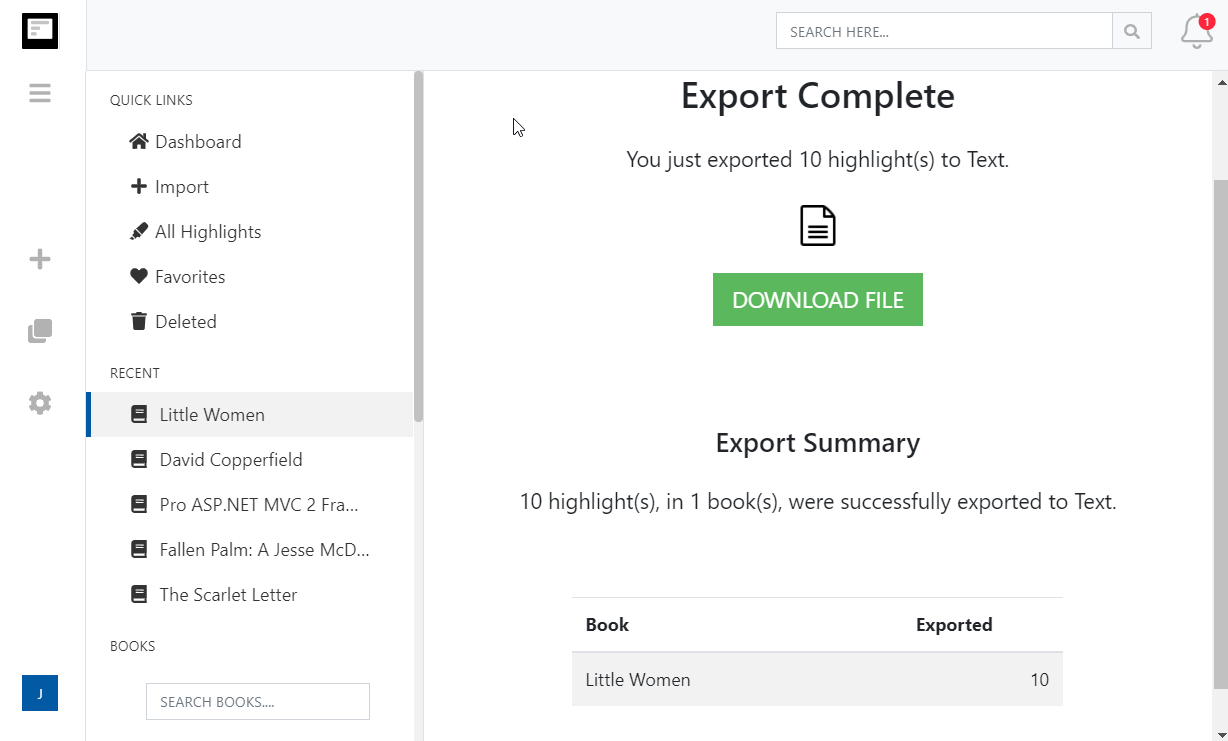
Download
Click Start Export. The file is built in the background and a Download File button appears when it is ready. If you asked for one file per book, they arrive together in a zip.
What you get in a text file
Your highlights as plain UTF-8 text with no formatting to fight, which is the format every other tool understands.
- Clean, readable text
- One highlight per paragraph with a blank line between them, your notes beneath, and a Tags line when you include tags. Nothing else.
- One file or one per book
- Download your whole library as a single .txt, or one file per book in a zip so each title stands on its own.
- Works everywhere
- Paste into any notes app, search with your editor, feed it to a script or keep it as a long-term archive that will open in fifty years.
- Tidier than My Clippings.txt
- Unlike the file on your Kindle, the export has no separators to strip, no duplicates, and includes highlights from books bought on Amazon as well as personal documents.
- Erweiterte Exportformatierungsoptionen
- Legen Sie genau fest, wie Ihre Kindle-Highlights formatiert werden sollen, inklusive Optionen für Zitierweisen (Chicago, MLA, APA) und die Möglichkeit, Tags und Notizen einzufügen.
Kindle to text questions
- How is this different from My Clippings.txt?
- The My Clippings.txt on your Kindle only holds side-loaded books and personal documents, repeats highlights every time you edit them, and wraps each entry in separator lines. Clippings.io's export merges that file with highlights from books bought on Amazon, removes duplicates and writes clean paragraphs sorted the way you want.
- How is the file laid out?
- Each highlight is a paragraph, separated from the next by a blank line. Notes attached to a highlight follow it, and a Tags line lists any tags. Turn on book titles in the export options to introduce each book with its title.
- Can I include citations?
- Yes. Choose Simple, Chicago, APA or MLA in the export options and every highlight ends with its author, title and Kindle location or page.
- What encoding is the file?
- UTF-8, so highlights in any language keep their characters when you open the file in an editor, a notes app or a script.
- Can I import the text into another app?
- Yes. Plain text pastes into Apple Notes, Google Keep, Bear, Obsidian and almost anything else. If the other app understands Markdown headings, the Markdown export is a closer fit.
- Can I export to a text file on the free plan?
- Yes. On the free plan each exported highlight is cut to its first 100 characters, which is enough to see how the export looks. The professional plan removes the limit, and your first export after upgrading resends everything in full.
Clippings.io also exports Kindle highlights to Notion, Markdown, Dropbox, Google Drive, OneDrive, OneNote, Evernote, Word, Excel, PDF, EPUB, JSON, OpenDocument Text and OpenDocument Spreadsheet.
Bereit, einzutauchen?Fangen Sie noch heute mit einem kostenlosen Konto an.
Einmal markieren, für immer merken. Machen Sie das Beste aus den Büchern, die Sie auf Ihrem Kindle lesen.
Kostenlos registrieren