Kindle-Highlights nach Word exportieren
Laden Sie Ihre Kindle-Highlights und Notizen als Word-Dokument herunter, mit einer Überschrift pro Buch, kursiven Notizen und dem Zitierstil Ihrer Wahl.
How to export Kindle highlights to Word
- 1
Import your Kindle highlights
Use the Clippings.io browser extension to pull in highlights from books bought on Amazon, or upload the My Clippings.txt file from your Kindle to include personal documents. Duplicates are removed automatically.
- 2
Choose Word
Select the books or highlights you want, open Export and pick Word on the File Downloads tab. Word 2007 (.docx) suits any current version of Word; Word 2003 (.doc) is there for older software. Open Show Advanced Export Options to pick a citation style and whether each book starts on a new page.
- 3
Download
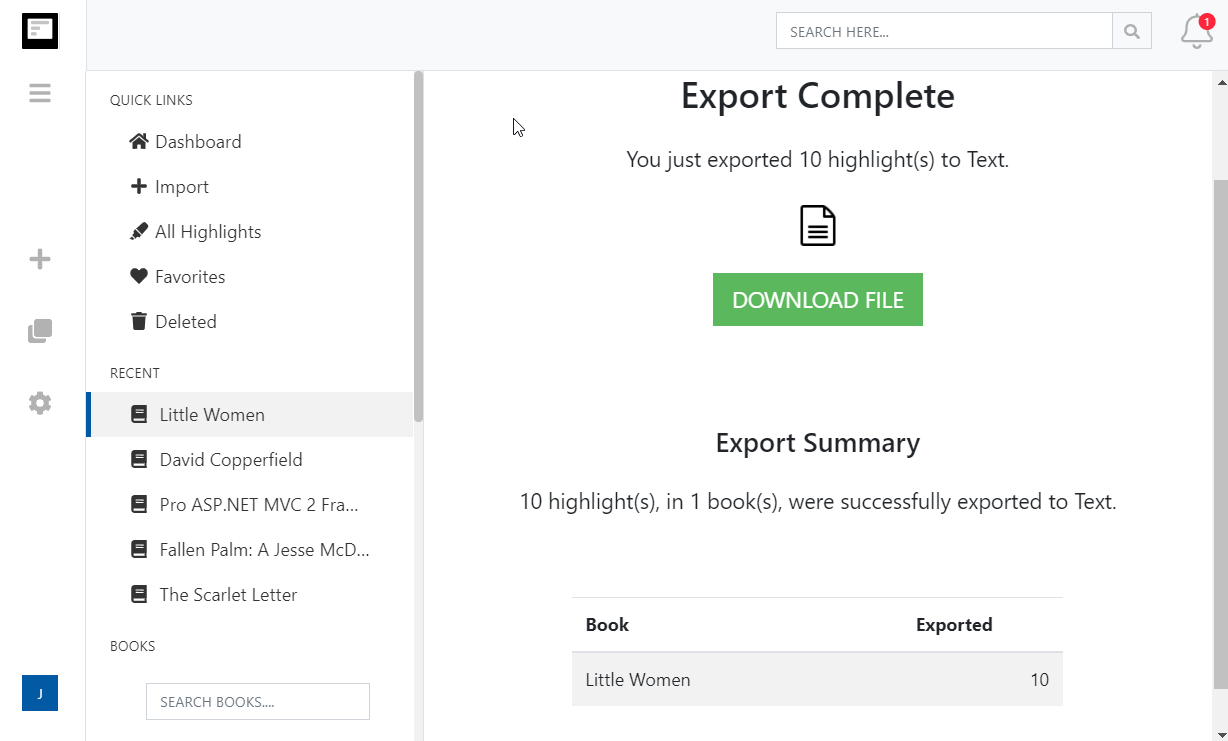
Click Start Export. The file is built in the background and a Download File button appears when it is ready. If you asked for one file per book, they arrive together in a zip.
What you get in Word
A properly structured document, not a paste of plain text.
- Book titles as real headings
- Every book title uses Word's Heading 1 style, so the navigation pane lists your books, a table of contents builds itself, and you can restyle everything with one click.
- One document or one per book
- Keep your whole library in a single file, optionally with a page break before each book, or download one document per book as a zip.
- Ready to quote
- Highlights are set in 12pt Arial with your notes and tags in italics beneath them. Add a citation style and every highlight carries its author, title and location, ready to drop into an essay.
- Or send it straight to the cloud
- Word is the default format for the Dropbox, Google Drive and OneDrive integrations, where the document is kept up to date automatically after each import.
- Erweiterte Exportformatierungsoptionen
- Legen Sie genau fest, wie Ihre Kindle-Highlights formatiert werden sollen, inklusive Optionen für Zitierweisen (Chicago, MLA, APA) und die Möglichkeit, Tags und Notizen einzufügen.
Kindle to Word questions
- Which Word formats can I download?
- Word 2007 and later (.docx) and Word 97 to 2003 (.doc). Both come from the same export, so the content is identical. LibreOffice, Pages and Google Docs open .docx as well; there is also a separate OpenDocument Text (.odt) export.
- How is the document laid out?
- Each book title is a Heading 1, followed by its highlights in the order you chose. Notes you attached to a highlight and any tags appear in italics underneath it. You can start each book on a new page and hide or show the book title headings in the export options.
- Can I include citations for essays and papers?
- Yes. Choose Simple, Chicago, APA or MLA in the export options and every highlight is followed by its citation with author, title and Kindle location or page number. Preview the result before you export.
- Can I export just one book?
- Yes. Select a book, a tag, an import or a search result in the left-hand menu and click Export in the toolbar. Only that selection goes into the document.
- Do notes from personal documents come through?
- Yes. Upload the My Clippings.txt file from your Kindle to import highlights from side-loaded books and personal documents, then export them to Word like any other book.
- Can I export to Word on the free plan?
- Yes. On the free plan each exported highlight is cut to its first 100 characters, which is enough to see how the export looks. The professional plan removes the limit, and your first export after upgrading resends everything in full.
Clippings.io also exports Kindle highlights to Notion, Markdown, Dropbox, Google Drive, OneDrive, OneNote, Evernote, Excel, PDF, Text, EPUB, JSON, OpenDocument Text and OpenDocument Spreadsheet.
Bereit, einzutauchen?Fangen Sie noch heute mit einem kostenlosen Konto an.
Einmal markieren, für immer merken. Machen Sie das Beste aus den Büchern, die Sie auf Ihrem Kindle lesen.
Kostenlos registrieren