
Kindle-Highlights nach OneDrive exportieren
Übertragen Sie Ihre Kindle-Highlights und Notizen als Word, PDF, Markdown oder in jedem anderen Dateiformat in einen Clippings.io-Ordner in OneDrive und halten Sie ihn automatisch aktuell.
How to export Kindle highlights to OneDrive
- 1
Import your Kindle highlights
Use the Clippings.io browser extension to pull in highlights from books bought on Amazon, or upload the My Clippings.txt file from your Kindle to include personal documents. Duplicates are removed automatically.
- 2
Connect OneDrive
Open Settings, Integrations in Clippings.io, choose OneDrive and sign in with your Microsoft account. OneDrive gives Clippings.io its own app folder and nothing else.
- 3
Export
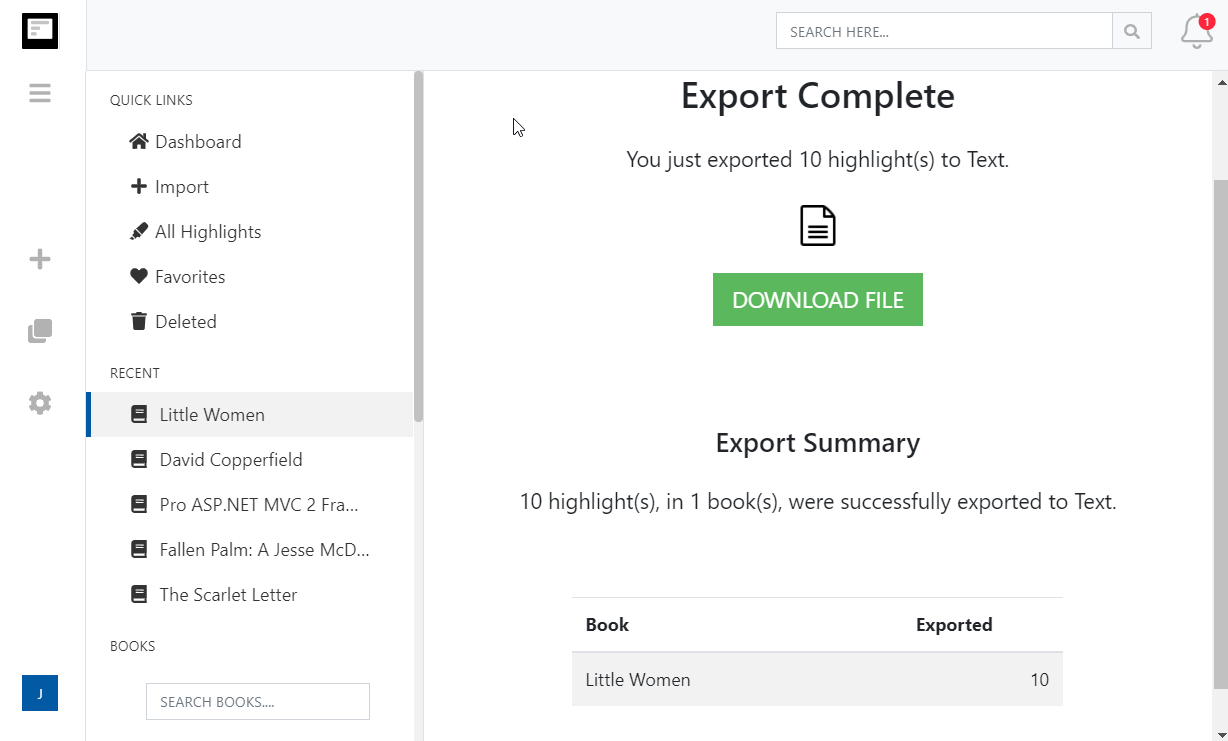
Select the books or highlights you want, open the Export menu and pick OneDrive. Choose Word, PDF, Markdown or any other file format, one file for everything or one per book, and click Start Export.
What you get in OneDrive
Your Kindle highlights as files in OneDrive, ready for Word, Excel and every device signed in to your Microsoft account.
- A Clippings.io folder under Apps
- Files land in OneDrive, Apps, Clippings.io. Clippings.io can only see that folder, and it syncs to your PC, Mac and phone like any other OneDrive folder.
- Pick the file format: Word, PDF, Excel, Text, Markdown, JSON, OpenDocument Text or OpenDocument Spreadsheet
- Word is the default and opens in Word for the web with one click. Choose one file for your whole library or one file per book.
- Only what changed is written
- Clippings.io remembers which highlights it has sent. Export again and only books with new highlights are replaced, so the folder never fills with copies.
- Automatic exports
- Turn on Auto Export and every import is pushed to OneDrive as soon as it finishes.
- Erweiterte Exportformatierungsoptionen
- Legen Sie genau fest, wie Ihre Kindle-Highlights formatiert werden sollen, inklusive Optionen für Zitierweisen (Chicago, MLA, APA) und die Möglichkeit, Tags und Notizen einzufügen.
Kindle to OneDrive questions
- Where do my Kindle highlights end up in OneDrive?
- In the folder Apps, Clippings.io at the top of your OneDrive. Clippings.io writes one file per book named after the book, or a single file named KindleHighlights when you choose one document.
- Which file formats can I send to OneDrive?
- Word, PDF, Excel, Text, Markdown, JSON, OpenDocument Text or OpenDocument Spreadsheet. Word 2007 (.docx) is the default. Change it in the export options or in Settings, Integrations.
- What happens if I export the same book twice?
- The file for that book is replaced with the latest highlights, so there are no duplicate files and no duplicate highlights. Books with nothing new are left alone.
- What if I edit the exported files in OneDrive?
- Those edits are lost the next time the book is exported, because Clippings.io replaces the whole file. Edit highlights and notes in Clippings.io instead and they come across on every export, or copy the files out of the Clippings.io folder before editing them.
- Does this work with OneDrive for work or school?
- Clippings.io connects through a personal Microsoft account and its OneDrive app folder. Work and school accounts managed by an organisation may block third-party apps, so check with your administrator if the connection is refused.
- Can I export to OneDrive on the free plan?
- Yes. On the free plan each exported highlight is cut to its first 100 characters, which is enough to see how the export looks. The professional plan removes the limit, and your first export after upgrading resends everything in full.
Clippings.io also exports Kindle highlights to Notion, Markdown, Dropbox, Google Drive, OneNote, Evernote, Word, Excel, PDF, Text, EPUB, JSON, OpenDocument Text and OpenDocument Spreadsheet.
Bereit, einzutauchen?Fangen Sie noch heute mit einem kostenlosen Konto an.
Einmal markieren, für immer merken. Machen Sie das Beste aus den Büchern, die Sie auf Ihrem Kindle lesen.
Kostenlos registrieren