
Export Options
Overview
Export options give you complete control over how you want your Kindle Highlights to be formatted when they are exported.
Your Export settings are automatically saved per Integration and file format. Your saved export preferences will be used for auto exports.
Accessing the Export Options
The export options are available whenever you perform an export via the Export page. To access them first select an Integration or File Download and then click the Show Advanced Export Options button.

The export options are also available on the Integrations Settings page by clicking the Open Settings button.
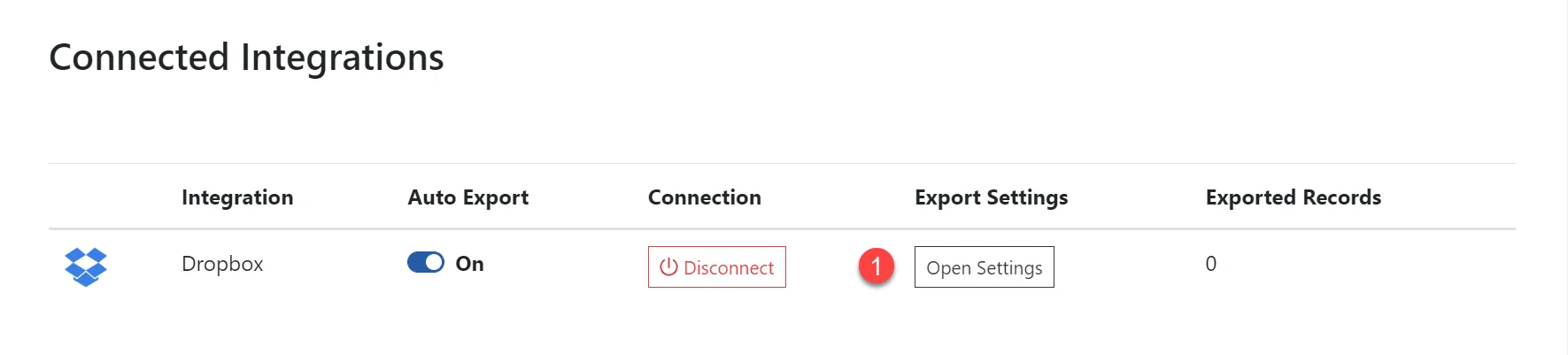
Export Options
The export options are broken into the following sections.
File Format
The File Format option specifies which File Format your Kindle Highlights are exported to.
This option is only available for file based integrations like Dropbox, Google Drive and OneDrive.

Documents
The documents section allows you to select how many documents get created when you export. This can be one document or one document per book.
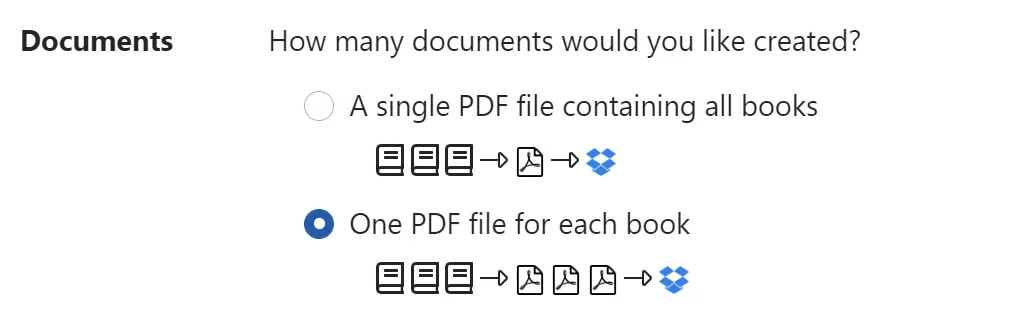
Record Types
The Record Types section allows you to specify which annotation types you would like to include in the export.

Sorting
The Record Types section allows you to specify how your Kindle Highlights are sorted.

Citation Style
The Citation Style option allows you to specify one of the following citation styles:
- None
- Simple
- Chicago
- APA
- MLA

Preview
The Preview Section provides a preview of how individual highlights will appear based on your export settings.
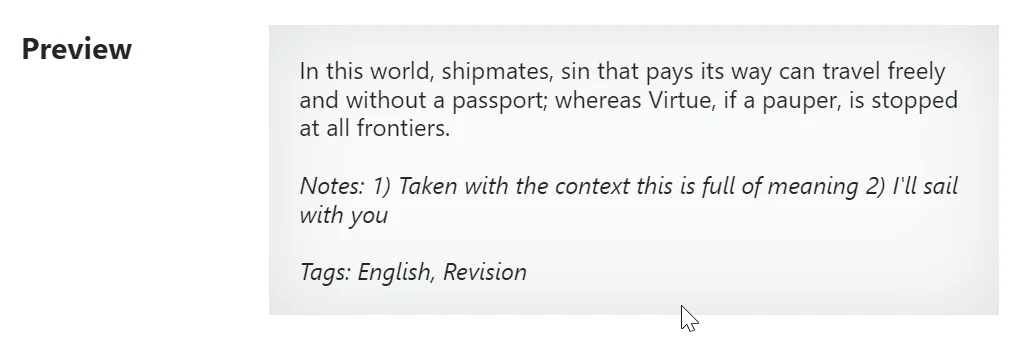
Auto Export
Turn on Auto Export to enable your Kindle Highlights to be exported whenever you import new Highlights.

This option is only available for exports to Integrations.
History
The History Section shows how many highlights have been exported for the selected export destination. Click the Reset button will allow previously exported records to be exported again the next time you perform an export.

Exporting to a Download
Exporting under the free plan is limited to the first 100 characters per highlight. This provides a preview of the export functionality in the…
Integration Settings
The Integration Settings page allows you to manage all your integrations. You can navigate to the Integration Settings page by clicking on the Settings…