
Exporting your Kindle Highlights
Overview
Exporting your Kindle Highlights is easy and only takes a couple of clicks to do it manually or none at all if you turn on Auto Exports.
The export process involves:
Video
Selecting Content to Export
When you perform an export the Kindle Highlights that get exported are determined by what is selected in the left hand navigation menu.
Exporting all your Kindle Highlights
When you want to export all your Kindle Highlights you can do easily by clicking the Export Icon or the Export menu item. Use can also navigate directly to https://my.clippings.io/explorer/all/export/wizard .
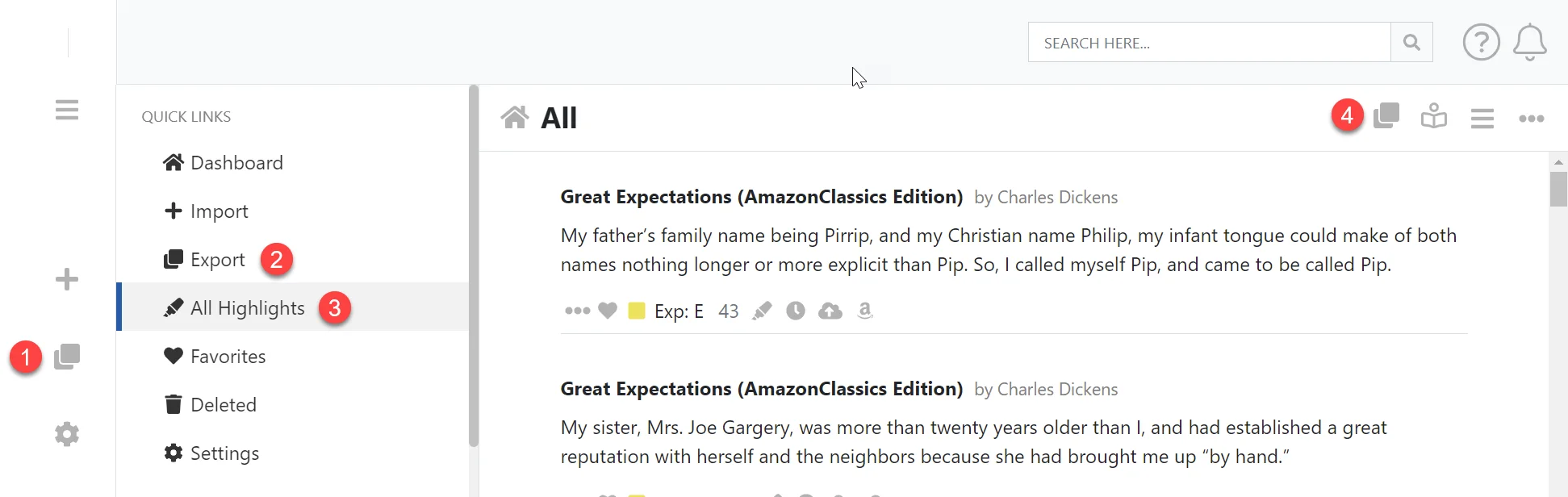
- Click the Export Icon which will open the export page with All Highlights selected as the export content.
- Or, click the Export menu item in the Quick Links section of the left hand navigation menu.
- Alternatively, click All Highlights in the left hand navigation bar.
- And then click the Export Icon to the toolbar.
Exporting the active selection
You can also export all the highlights for active selection in the left hand navigation menu. This can be one of the following:
- A single book
- A tag
- An import
- A search result
When you want to export the currently selected item in the left hand navbar you need to first select the item and then click the export button in the top right of the toolbar.
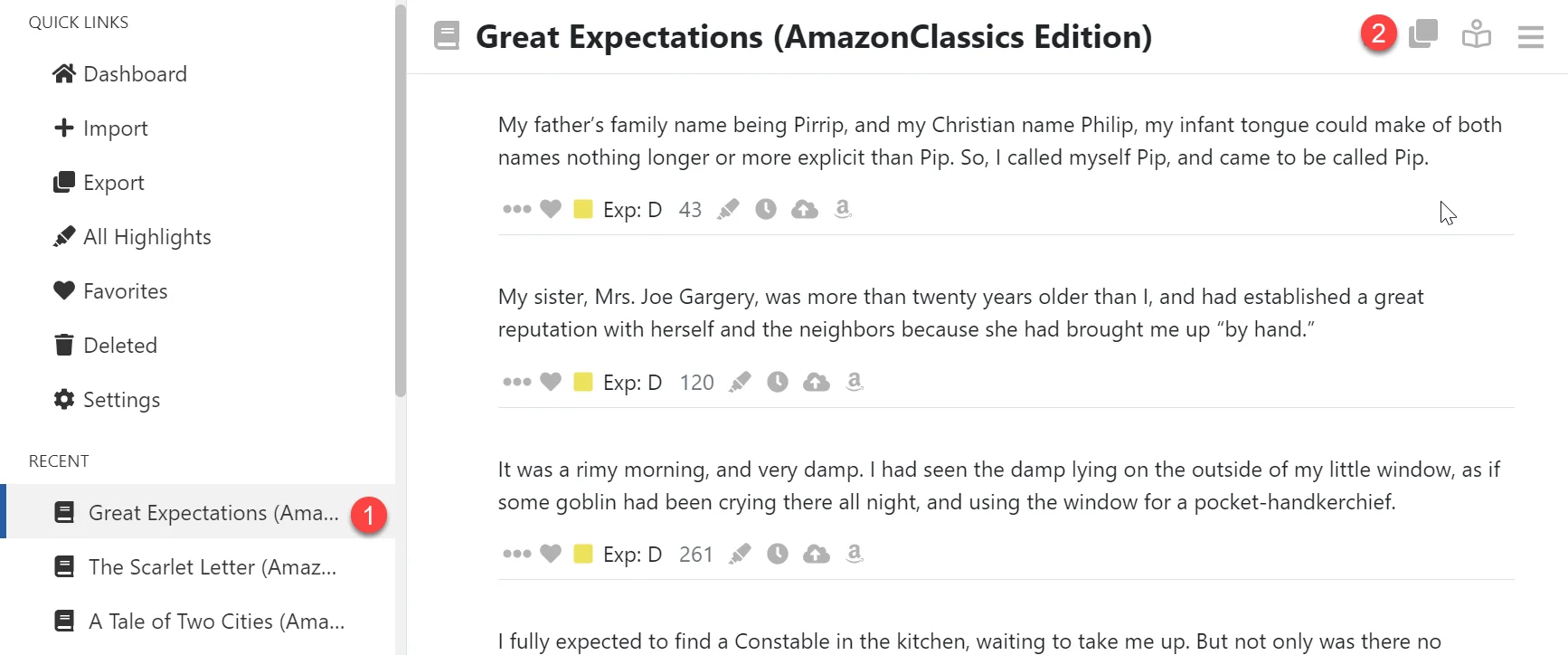
- Select the item in the left hand navigation menu.
- Click the Export button in the top right of the toolbar.
When you want to export the active selection you need to use the export button in the top right of the toolbar, this sets the export content to be the selected item. The export icon and the export menu item in the left hand navigation menu will select all your Kindle Highlights as the export content as opposed to the actively selected item.
Choosing an Export Destination
When you export there are two main export destinations you can choose from. You can either export to an integration, like Dropbox, or export to a file download, like PDF or Markdown.
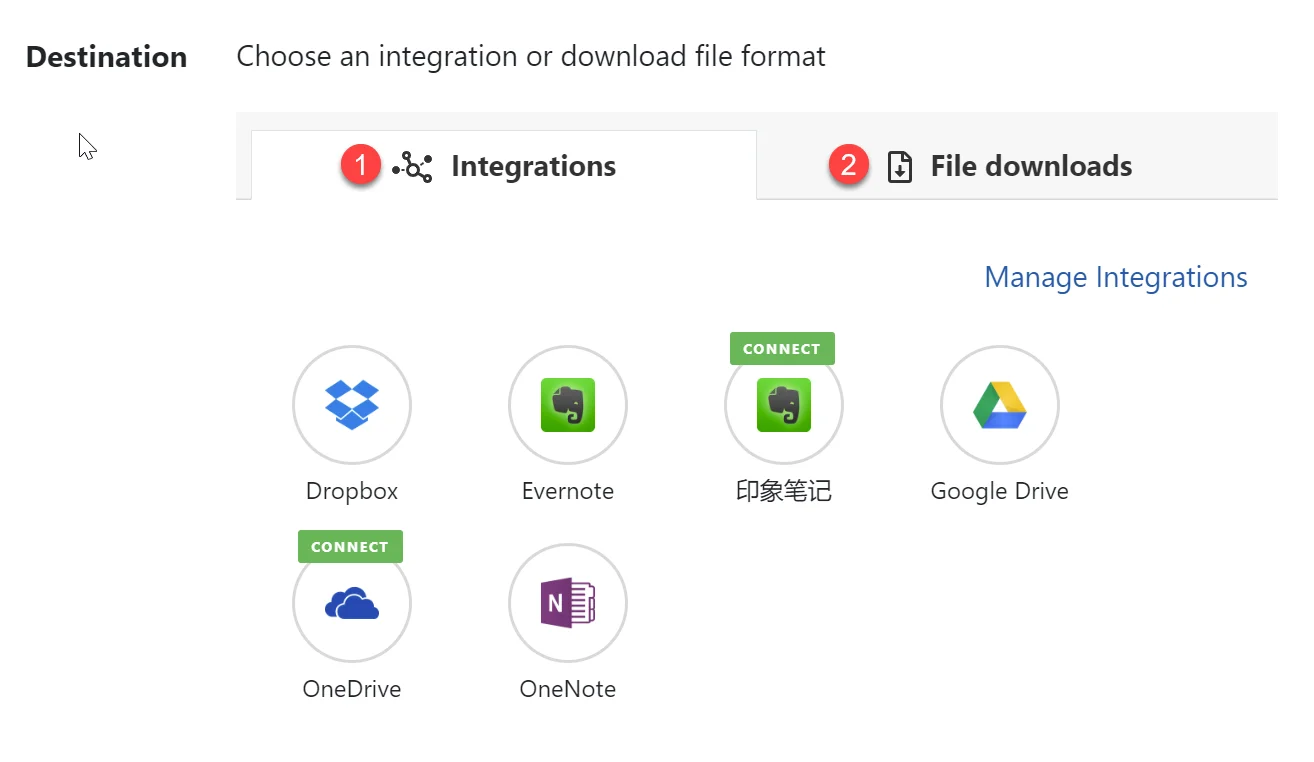
- Click the Integrations tab to see the available integrations you can export to.
- Click the File downloads tab to see the available download options you have.
Select an integration or file download to export to by clicking on the item.
Next see our Exporting to an Integration Guide and Exporting to a File Download Guide
Importing using the Browser Extension
The Clippings.io Browser Extension allows you to import Kindle Highlights made on Amazon purchased books. If you want to import Kindle Highlights made…
Exporting to an Integration
Exporting under the free plan is limited to the first 100 characters per highlight. This provides a preview of the export functionality in the…