
Deleting your Kindle Highlights
Overview
This page is about deleting highlights inside Clippings.io. To delete a highlight on the Kindle itself, in the Kindle app, at read.amazon.com/notebook or from My Clippings.txt, see How to delete Kindle highlights on the main site.
When deleting your Kindle Highlights you can:
- Delete a Single Kindle Highlight
- Delete all the Kindle Highlights in a Book
- Delete all the Kindle Highlights in an Import.
Deleting your Kindle Highlights will add them to the Deleted Items section, in the Explorer, where they can be restored or permanently deleted.
Deleting a Single Kindle Highlight
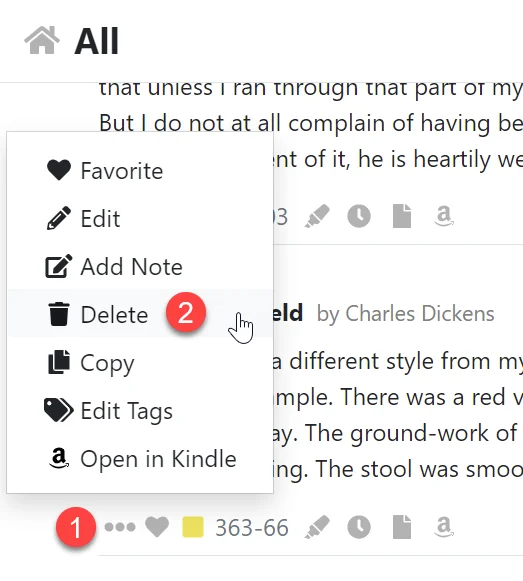
- Open the action menu by clicking the three dot icon.
- Click the Delete menu item.
Your deleted Kindle Highlight will now be in the Deleted Items section.
Deleting a Book
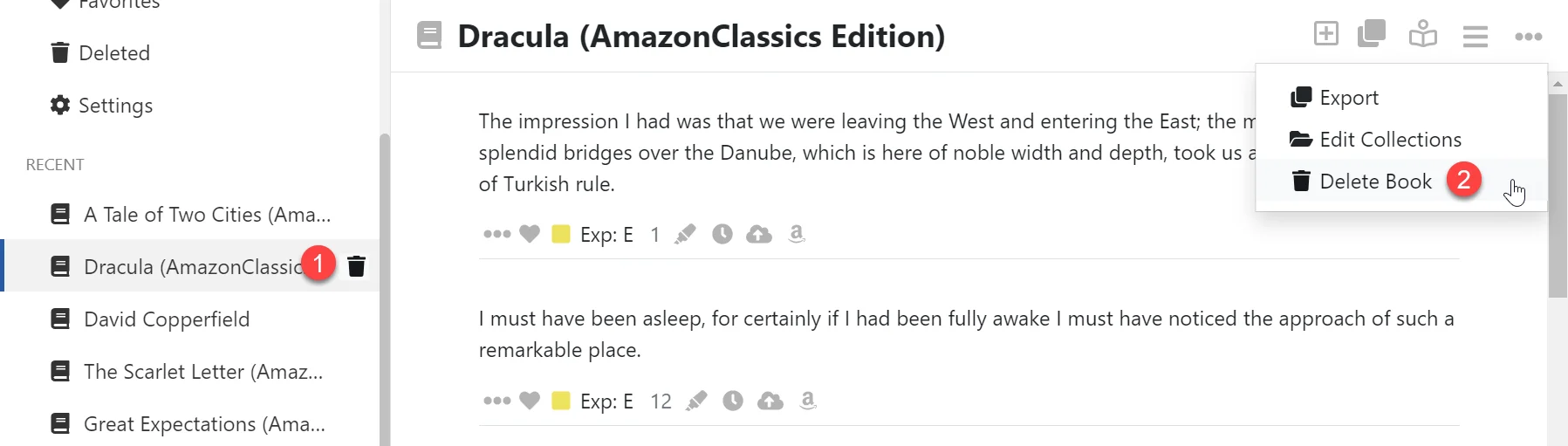
- Click the Delete icon in the left hand navigation menu.
- Or click the Delete Book menu item in the action menu.
Next Click Yes to confirm.
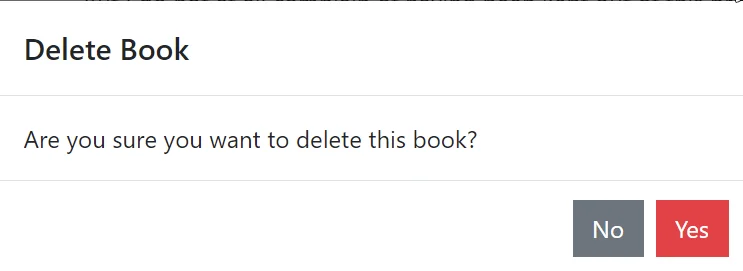
Your book will be deleted and all of it's highlights added to the Deleted Items section.
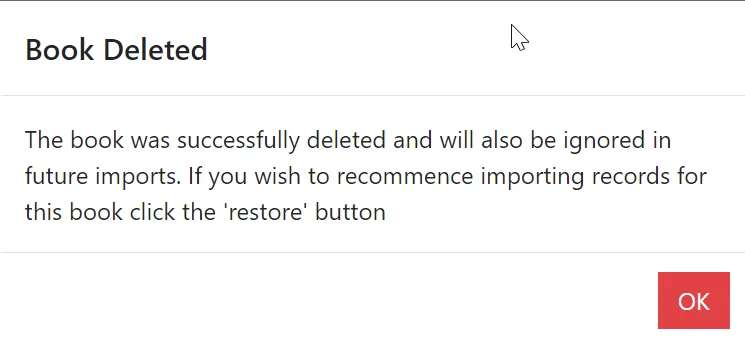
When you delete a book we also prevent highlights for the book being imported in future imports. To resume importing highlights you can restore the book.
Restoring a Book
Restore a book to restore all of it's deleted Highlights and resume importing Highlights for this book in future imports.
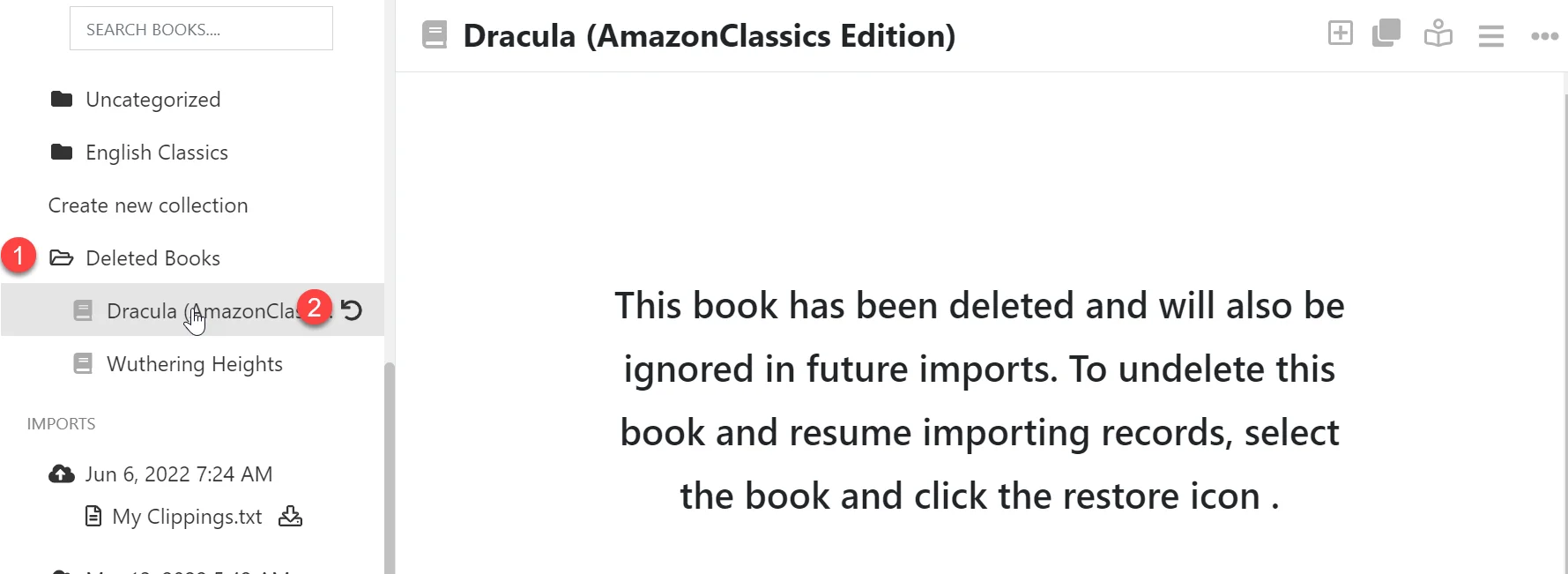
- Expand the Deleted Books folder in the left hand navigation menu.
- Click the Restore icon on the deleted book.
The book will now appear in it's original book collection and all the Kindle Highlights associated with the book will be restored.
Now that the book has been removed from the deleted books, it will not be ignored in future imports and importing Highlights will resume.
Deleting an Import
When you delete an import all of the Kindle Highlights associated with the import are permanently deleted and are not added to the Deleted Items section. This action can not be undone.
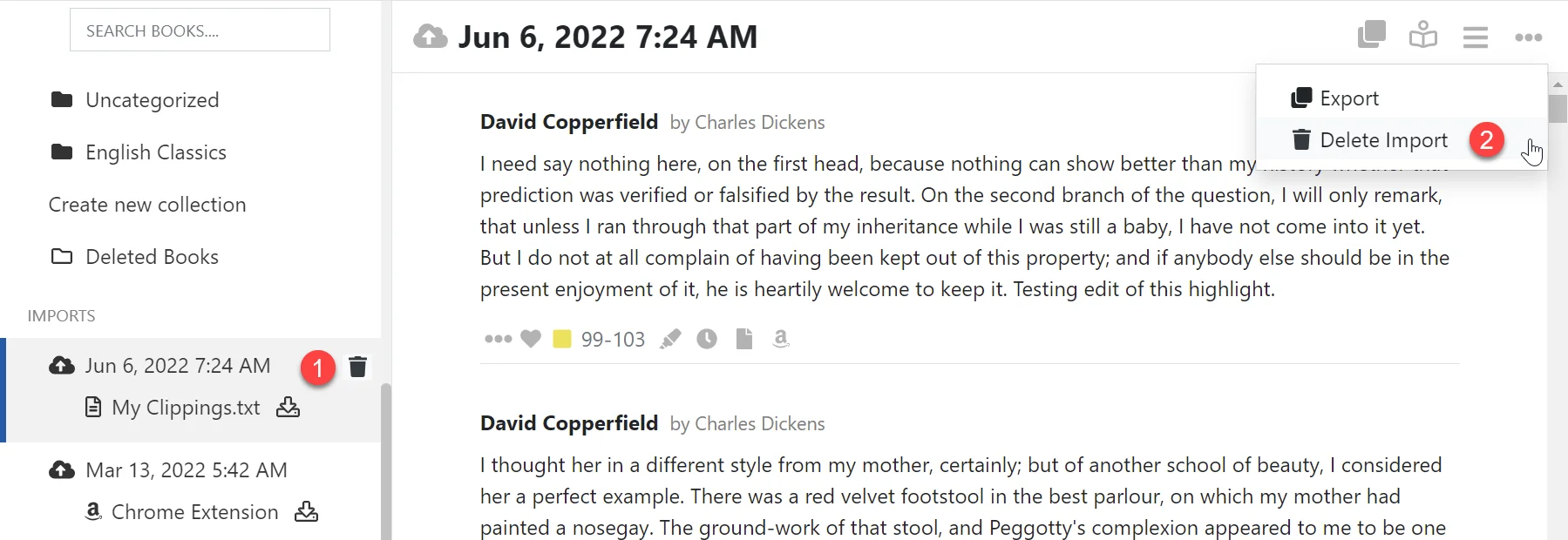
- Click the Delete icon in the left hand navigation menu.
- Or click the Delete Import menu item in the action menu.
Next Click Yes to confirm.
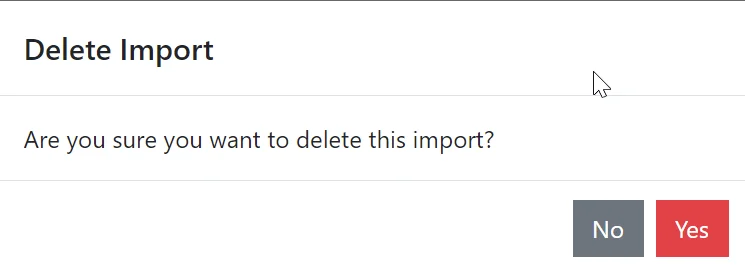
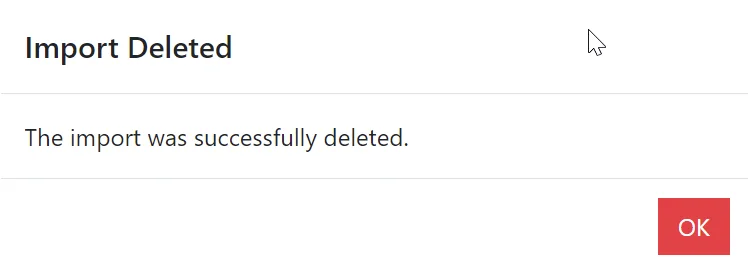
Your import will be deleted and along with all of it's associated Kindle highlights.
Restoring a Deleted Kindle Highlight
If you accidently deleted a Kindle Highlight you can restore it in the Deleted Items section. When an item is restored it will appear back in the book it originally belonged to. You can also restore all of the deleted items by clicking the Restore All button.
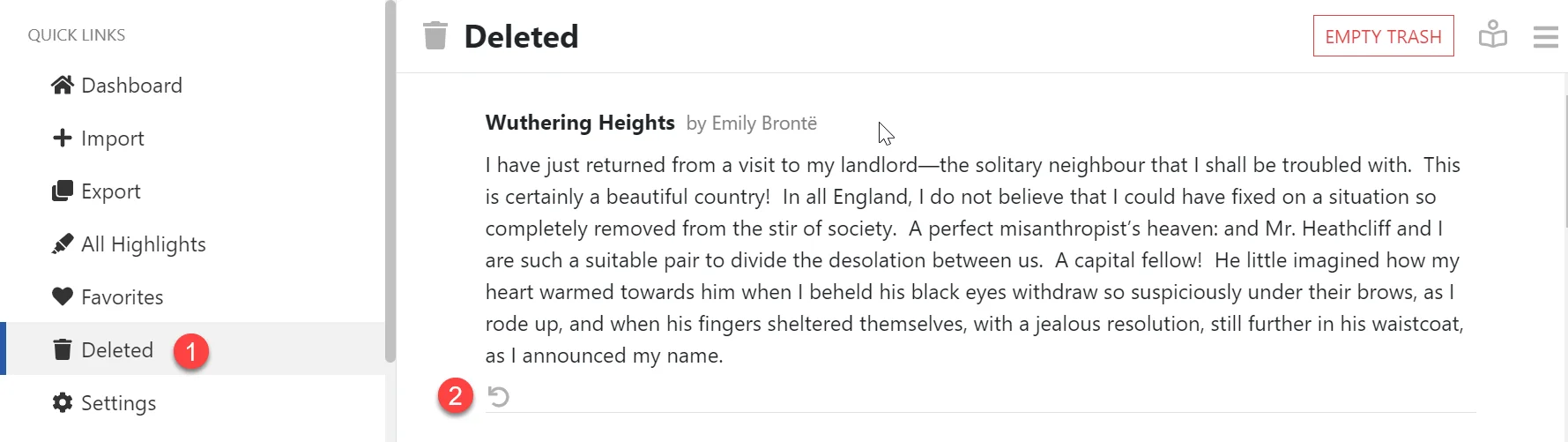
- Select the Deleted menu item in the left hand navigation menu.
- Click the Restore icon to restore a single item.
- Or click the Restore All button to restore all of the deleted items.
Permanently Deleting your Deleted Items
When you delete a Kindle Highlight it puts it in the Delete Items but does not physically delete the item. This enables you to restore the item at a later date. If you want to permantely delete your deleted items use can do so by clicking Empty Trash. This operation can not be undone.
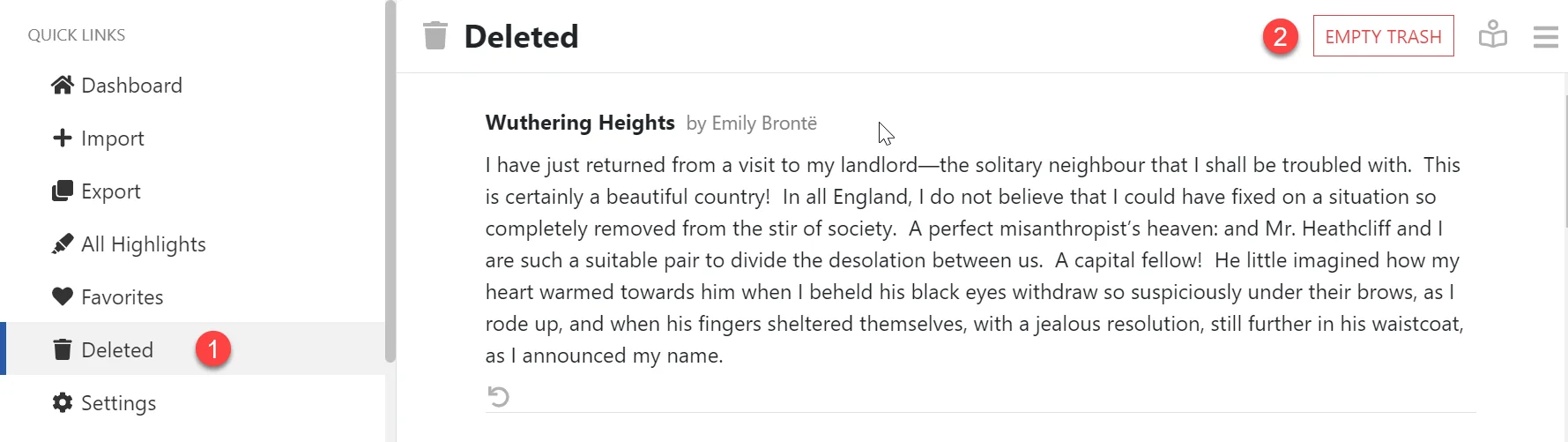
- Select the Deleted menu item in the left hand navigation menu.
- Click the Empty Trash button.