
Using the Explorer
Tagging your Kindle Highlights
Overview
Organise your Kindle Highlights using Tags. Tagged Highlights can also be selected for export.
Displaying the Tag Editor
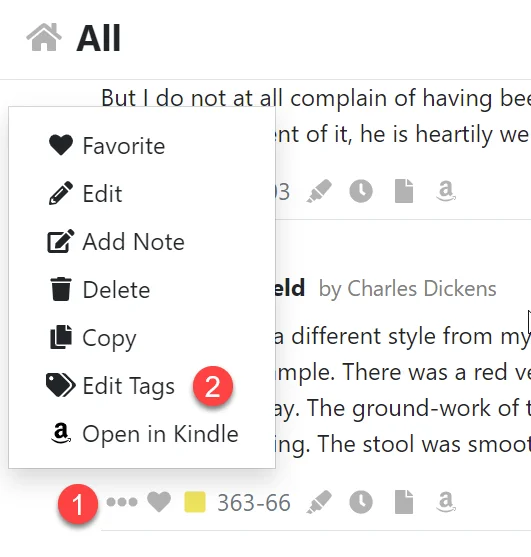
- Open the action menu by clicking the three dot icon.
- Click the Edit Tags menu item.
Editing Tags
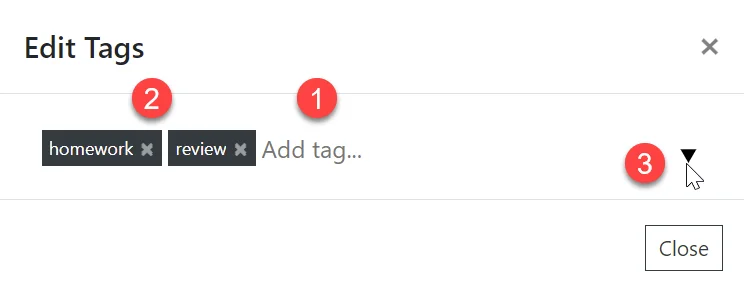
- Add tags by typing in the input the then pressing space or enter.
- Remove a tag from a Highlight by pressing the x icon.
- Apply one of your existing tags by clicking the dropdown icon.
Viewing and Exporting your Tagged Highlights
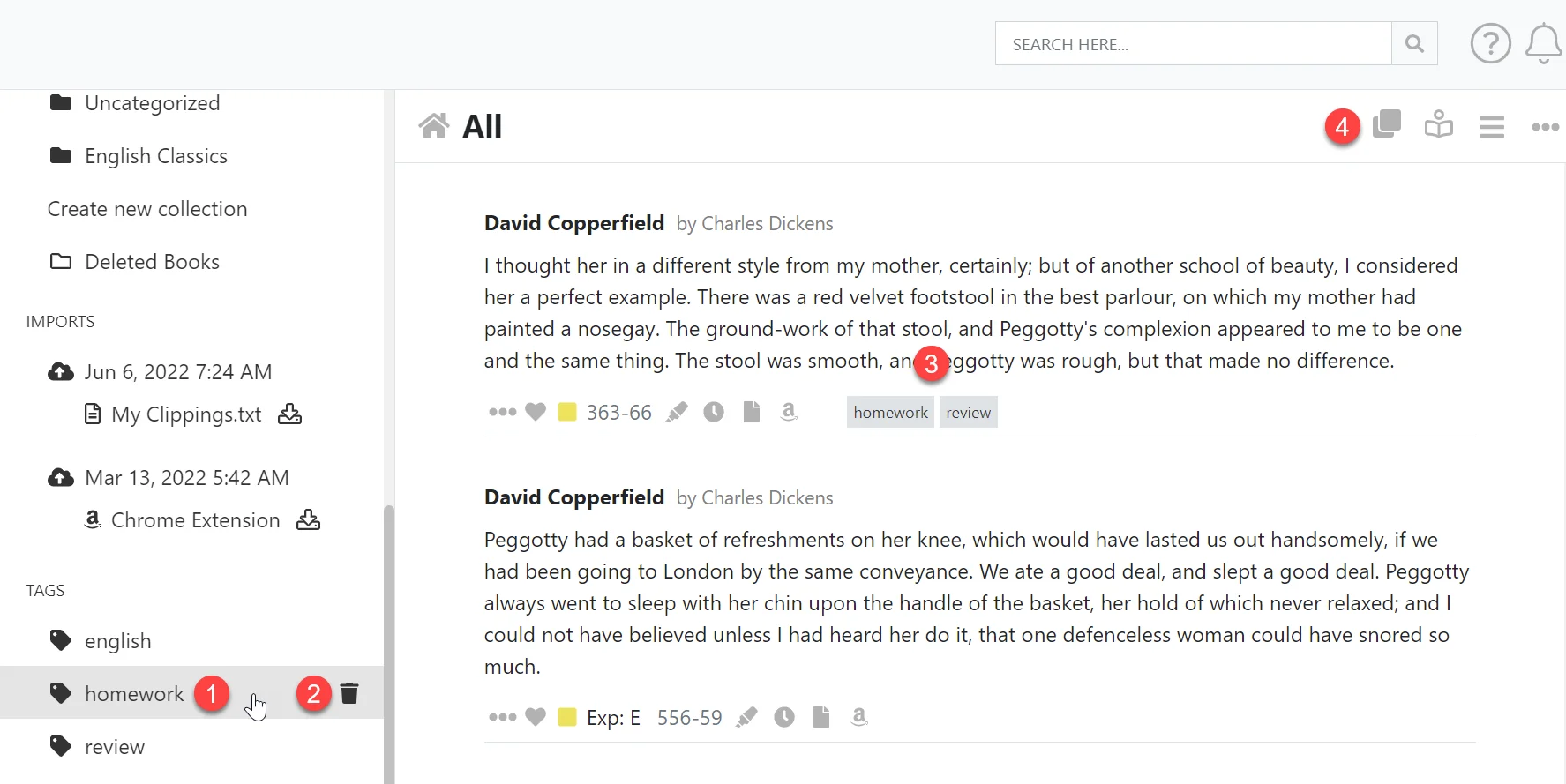
- Navigate to Tagged records in the left hand navigation menu.
- Delete the tag and remove it from all your Kindle Highlights.
- View the tags applied to the Highlight. Click the Tag to select all Highlights with that tag applied.
- Export the Highlights for the currently selected Tag by clicking Export icon in the toolbar. See Exporting your Kindle Highlights.
Searching your Kindle Highlights
Searching all of your Kindle Highlights is really easy. Just enter the search term and all of your Kindle Highlights will be searched and any matches…
Deleting your Kindle Highlights
This page is about deleting highlights inside Clippings.io. To delete a highlight on the Kindle itself, in the Kindle app, at read.amazon.com/notebook…