
Adding Notes to your Kindle Highlights
Overview
The Explorer allows you to add notes to your Kindle Highlights or to a Book.
Notes can also be included or excluded when you perfrom an export, see Exporting your Kindle Highlights.
Notes Attached to Highlights
Notes attached to a Kindle Highlight should be used when you want to add a note specific to a Highlight. If you want to add a note that relates to the book instead of a specific Highlight jump to the next section Notes Attached to Books.
Entering Edit Mode
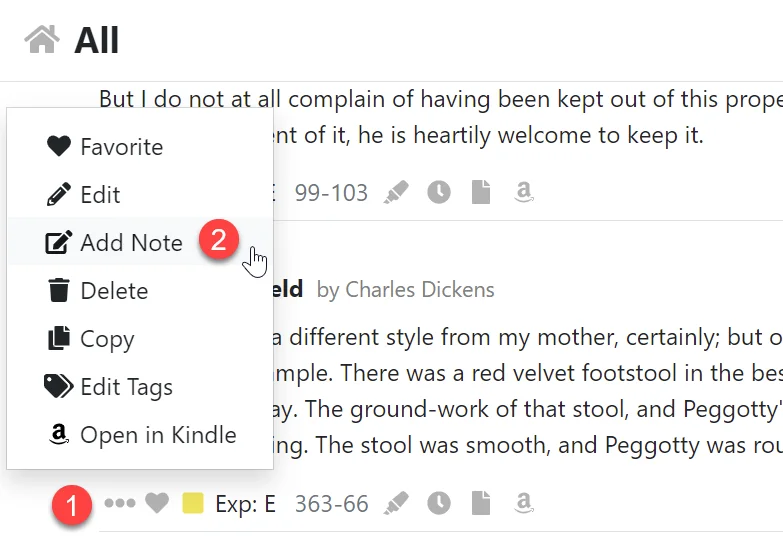
- Open the action menu by clicking the three dot icon.
- Click the Add Note menu item.
Adding a new Note
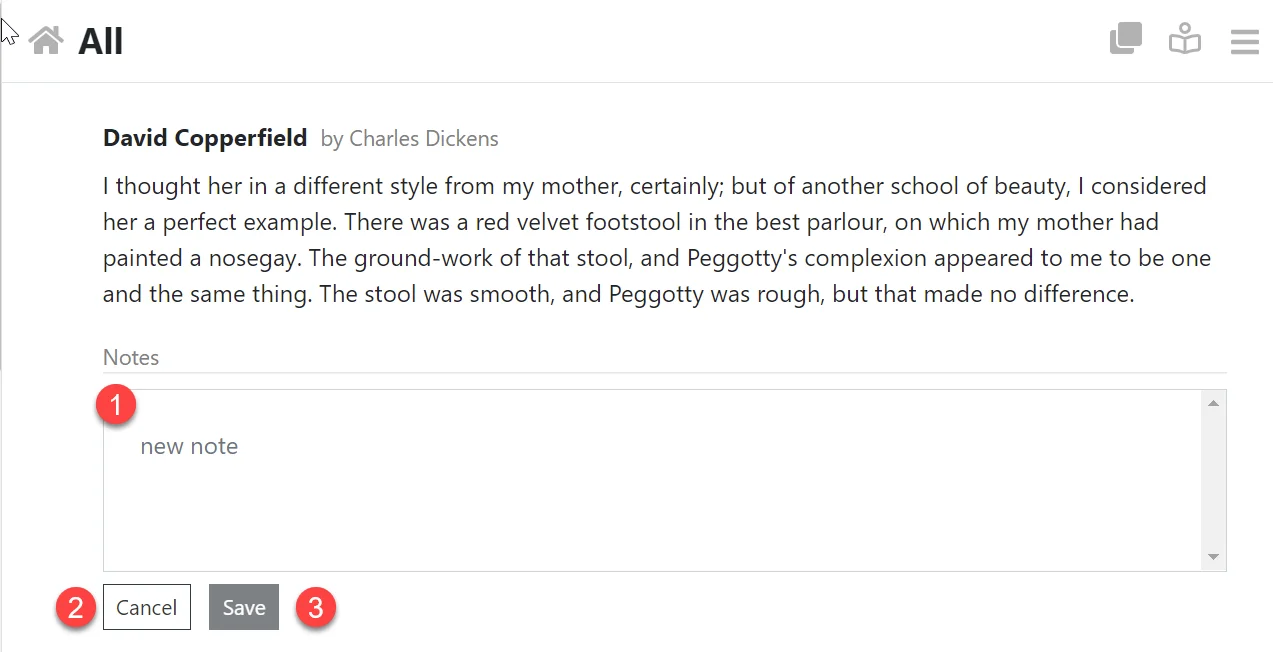
- Edit the content of your new note in the input area.
- Click the Cancel button to disgard your changes.
- Click the Save button to save your note.
Editing and Deleting Notes
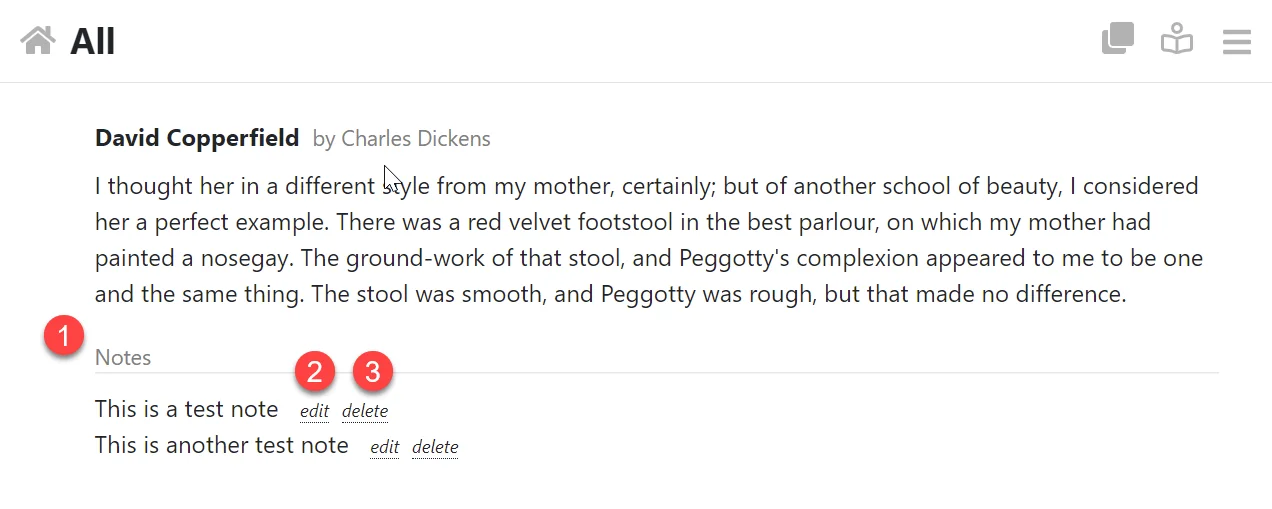
- Notes appear under the notes section.
- Click the Edit link to edit a note.
- Click the Delete link to delete the note.
Notes Attached to Books
Notes attached to a Book should be used when you want to add a note which is not specific to a Highlight but the book in general. If you want to add a note that relates to the a specific Highlight jump to the previous section Notes Attached to Highlights.
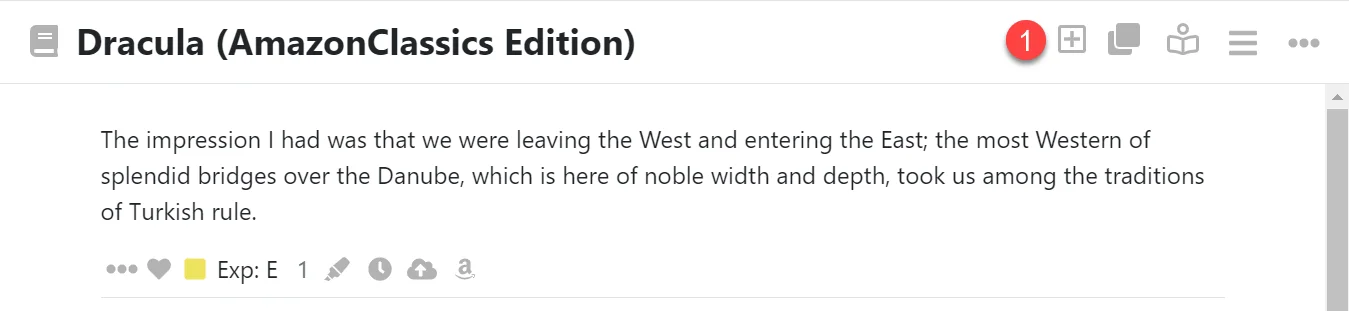
- Click the plus icon in the tollbar. This will bring up the note editor below.
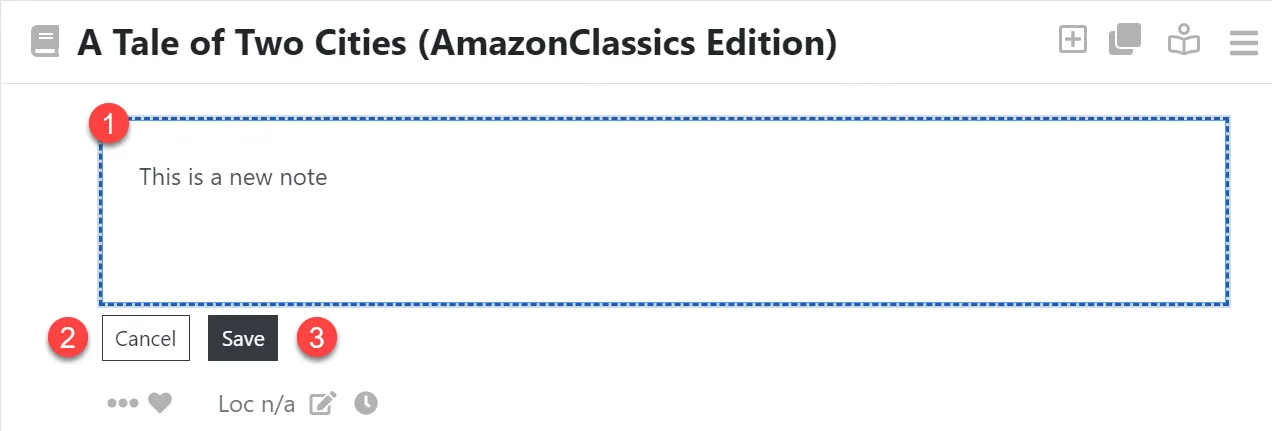
- Edit the content of your new note in the input area.
- Click the Cancel button to disgard your changes.
- Click the Save button to save your note.

- Book level notes level notes appear at the top of your notes and have a note icon.
Editing your Highlights
Editing your Kindle Highlights can be useful in many situations like when you accidentally highlighted the wrong content and you want to trim the…
Favoriting your Kindle Highlights
Your favoritie Kindle Highlights can be found on the Favorites page in the Explorer. Easily mark a Kindle Highlight as a favorite by clicking the heart…