
Open in Kindle
Overview
The Open in Kindle feature allows you open your book and see a Kindle Highlight exactly where it was highlighted. The feature only works for Amazon purchased books and the Kindle App for Windows or Mac needs to be installed.
Installing the Kindle App for Mac
Install the Kindle App for Mac or PC from this link https://www.amazon.com/kindle-dbs/fd/kcp.
Note that Open in Kindle does not work on the mobile versions of the Kindle App as they do not support deeplinking.
Open in Kindle
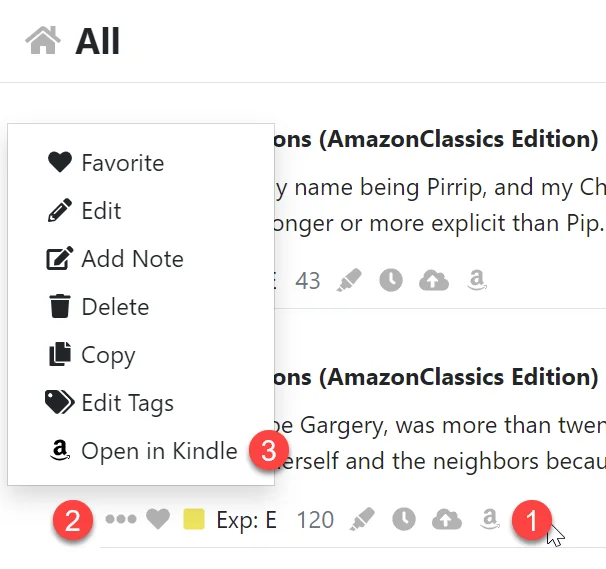
- Click the Amazon icon to open your Kindle Highlight in the Kindle App.
- Or click the three dot icon to open the action menu.
- Then click the Open in Kindle menu item.
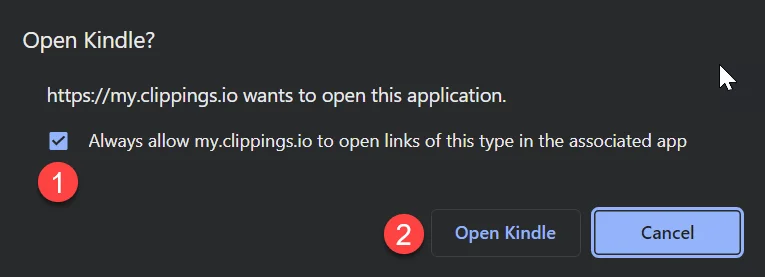
When the prompt appears tick the always allow box and then click Open Kindle.
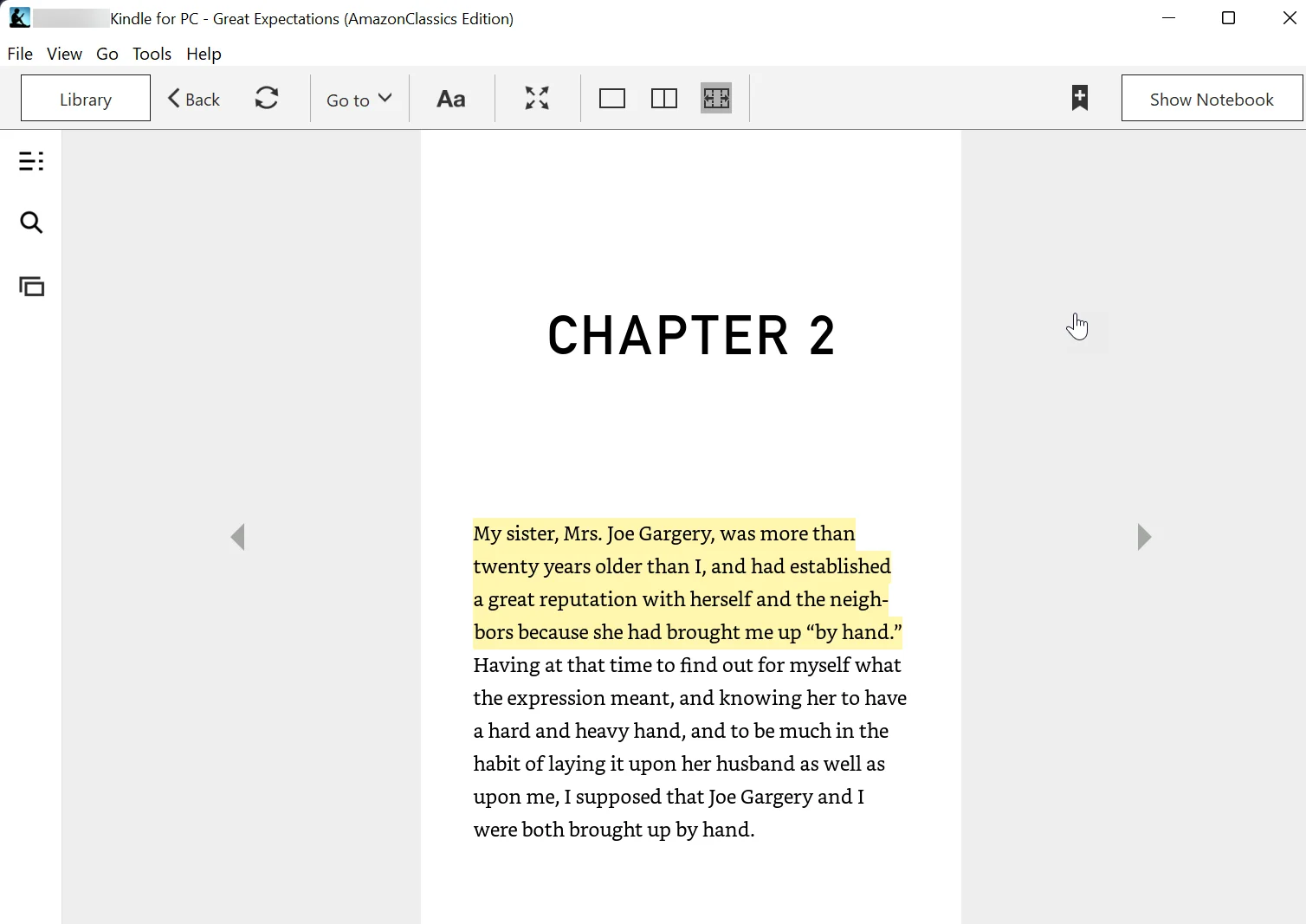
Your Kindle Highlight will be opened exactly where it was made in the book.
Deleting your Kindle Highlights
This page is about deleting highlights inside Clippings.io. To delete a highlight on the Kindle itself, in the Kindle app, at read.amazon.com/notebook…
Organising your Books into Collections
Book collections are used to group your books so that they are easier to find in the left hand navigation menu. You can add your books into collections…